
Overview
Corgea keeps you informed about important security events through email notifications and supported webhook events, so you don’t have to keep checking the platform. There are two places to configure this:- Settings → Personal → Notifications — which emails Corgea sends you.
- Settings → Company → Notification defaults — the starting point for everyone in the company. Company admins only.
How It Works
Notification preferences follow a simple two-level model:- Company defaults — set by company admins, these apply to everyone in the company.
- Personal preferences — each user can override the company default for their own emails.
These settings control email only. Webhook delivery is configured separately under Settings → Automation → Integrations → Webhooks and is not affected by anything on these pages. See Webhook Delivery below.
Company Defaults
Settings → Company → Notification defaults This is where company admins decide what’s turned on by default for the whole company.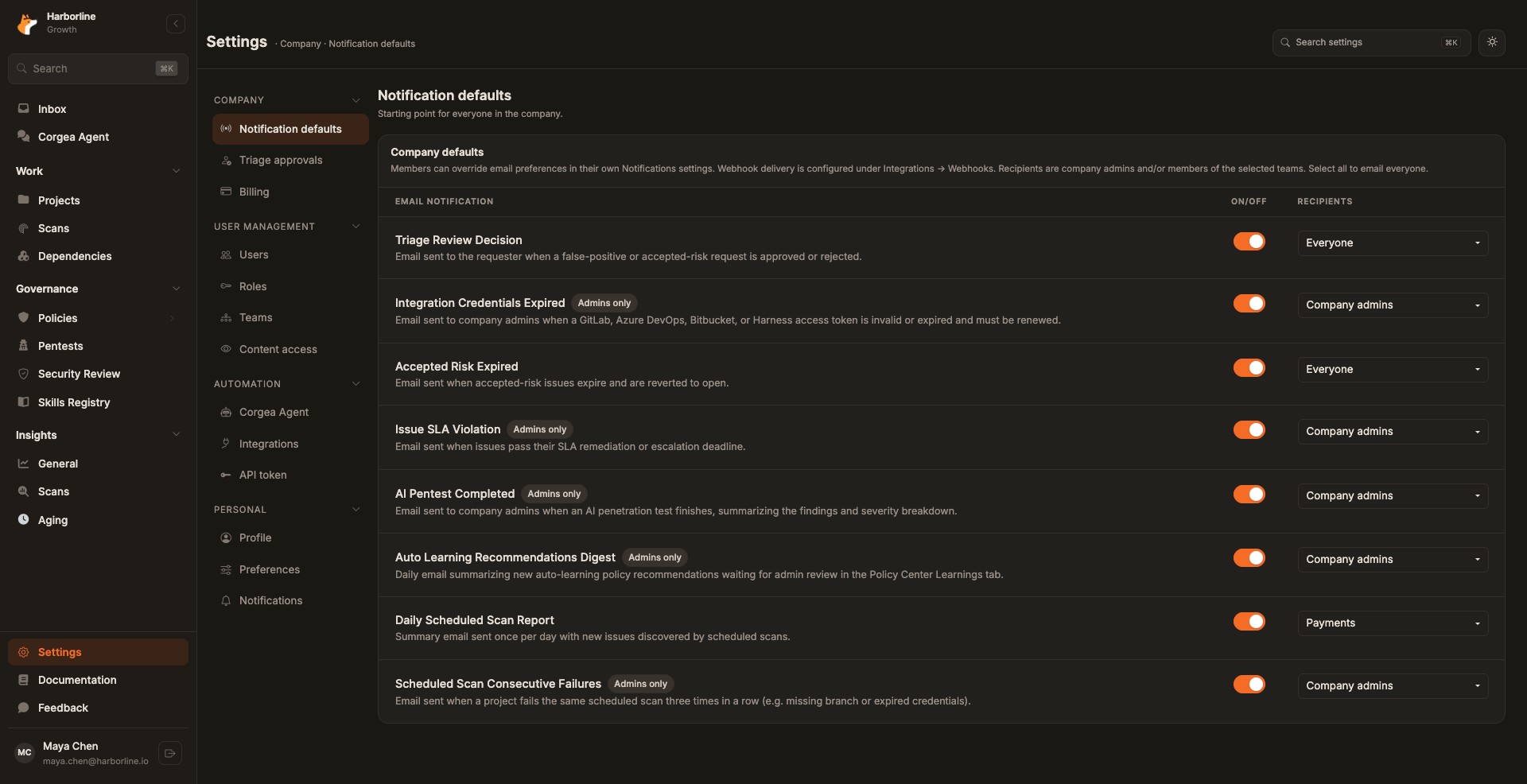
Notifications marked Admins only are sent solely to users with the company Admin role. They show Company admins in the Recipients column and cannot be limited to teams.
Limiting a notification to teams changes who receives the email. It does not change webhook delivery, and the people in scope can still set their own personal preference.
Your Own Notifications
Settings → Personal → Notifications Set each notification to Inherit, On, or Off. Inherit follows your company’s default, which is what every notification starts on.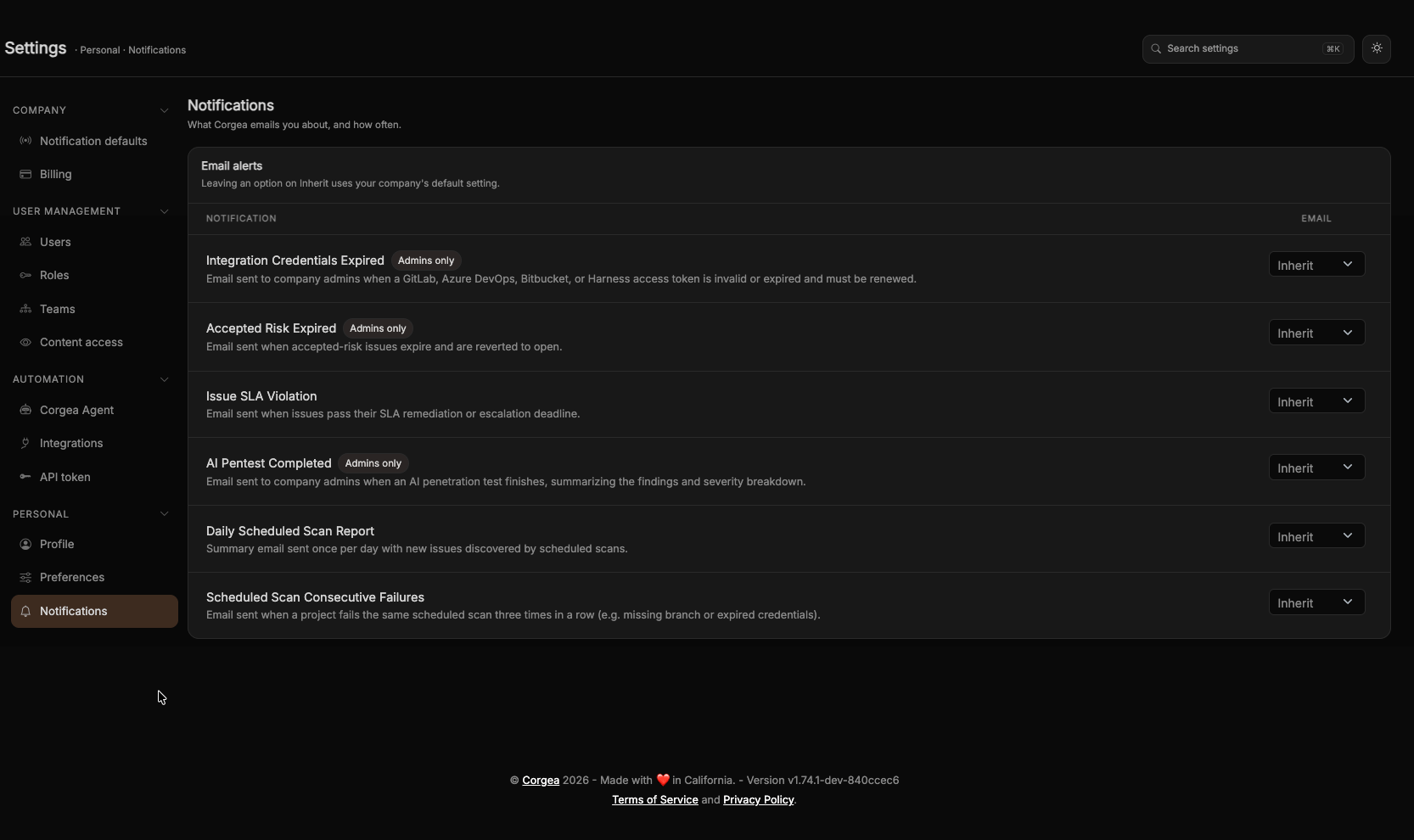
Webhook Delivery
Except for the email-only Auto Learning Recommendations Digest, Triage Review Decision, and Group Permissions Updated notifications, every notification listed below has a matching webhook event. A webhook receives the event whenever it is subscribed to it — there is no per-notification webhook switch, and email preferences have no effect on webhook delivery. Set up a webhook under Settings → Automation → Integrations → Webhooks. See Webhooks for the event list, payload schemas, and delivery history.Available Notifications
Scheduled Scan Report
A daily report covers scheduled scans completed in the last 24 hours, including runs with no new findings. It shows new open code findings since each project’s previous scan and open finding totals by category, matching the scan results page. No report is sent when no scheduled scans completed.- Who receives it: All users in the company
- Email default: On
- Recipients: Company admins can limit delivery to selected teams
- Webhook event:
scheduled_scan.daily_report
Scheduled Scan Consecutive Failures
Sent when a project fails the same scheduled scan three consecutive times because of a persistent configuration problem, such as a missing branch, expired credentials, or invalid repository settings. Corgea sends one email for each failure streak and pauses automatic attempts for that project until you fix the problem and successfully retry it with Run Now.- Who receives it: All users in the company
- Email default: On
- Recipients: Company admins can limit delivery to selected teams
- Webhook event:
scheduled_scan.failure
Issue SLA Violation
Sent when one or more issues pass their remediation or escalation deadline as set in your SLA Management configuration.- Who receives it: All users in the company
- Email default: On
- Recipients: Company admins can limit delivery to selected teams
- Webhook event:
sla.violation
Accepted Risk Expired
Sent when an issue that was previously marked as “accepted risk” reaches its expiry date and is automatically reverted to open.- Who receives it: Company admins only
- Email default: On
- Recipients: Company admins — cannot be limited to teams
- Webhook event:
issue.accepted_risk_expired
AI Pentest Completed
Sent when an AI penetration test finishes, with a summary of findings and severity breakdown.- Who receives it: Company admins only
- Email default: On
- Recipients: Company admins — cannot be limited to teams
- Webhook event:
pentest.completed
Integration Credentials Expired
Sent when a GitLab, Azure DevOps, Bitbucket, or Harness access token connected to Corgea is invalid or expired and needs to be renewed.- Who receives it: Company admins only
- Email default: On
- Recipients: Company admins — cannot be limited to teams
- Webhook event:
integration.credentials_expired
Auto Learning Recommendations Digest
A daily email summarizes new auto-learning policy recommendations awaiting admin review. It previews up to 10 recommendations and links to Policy Center → Learnings for the full list. Recommendations already included in a digest are not sent again; policies remain unchanged until an admin approves them.- Who receives it: Company admins only
- Email default: On
- Recipients: Company admins — cannot be limited to teams
- Delivery: Email only; no matching webhook event
Triage Review Decision
Sent to the requester when a false-positive or accepted-risk request is approved or rejected. Bulk reviews summarize results per requester and outcome; withdrawals do not send an email.- Who receives it: The requester
- Email default: On
- Delivery: Email only; no matching webhook event
Group Permissions Updated
Sent when permissions are added to or removed from a role. The email identifies the role and who changed it, summarizes the number of permissions added and removed, and links to the roles page.- Who receives it: Company admins and staff, subject to notification preferences and any configured team scope
- Email default: On
- Delivery: Email only; no matching webhook event