
Overview
Corgea Agent is an AI-powered assistant that helps you manage security vulnerabilities in your codebase. It provides two main interaction modes:- Web Chat Interface - An interactive chat for exploring security issues, scans, and vulnerability data
- Pull Request Comments - Automated responses to commands in PR comments across GitHub, GitLab, Azure DevOps, and Bitbucket
Getting Started
Prerequisites
Before enabling Corgea Agent, ensure you have:- Active Corgea account with appropriate plan access
- At least one integration configured (GitHub, GitLab, Azure DevOps, or Bitbucket)
- Webhook events properly configured for your repository
Initial Setup
1
Enable Corgea Agent
Navigate to Settings → Automation → Corgea Agent in your Corgea dashboard and toggle the “Enable Corgea Agent” switch to activate the agent. Once enabled, the agent will begin monitoring PR comments and be available for chat.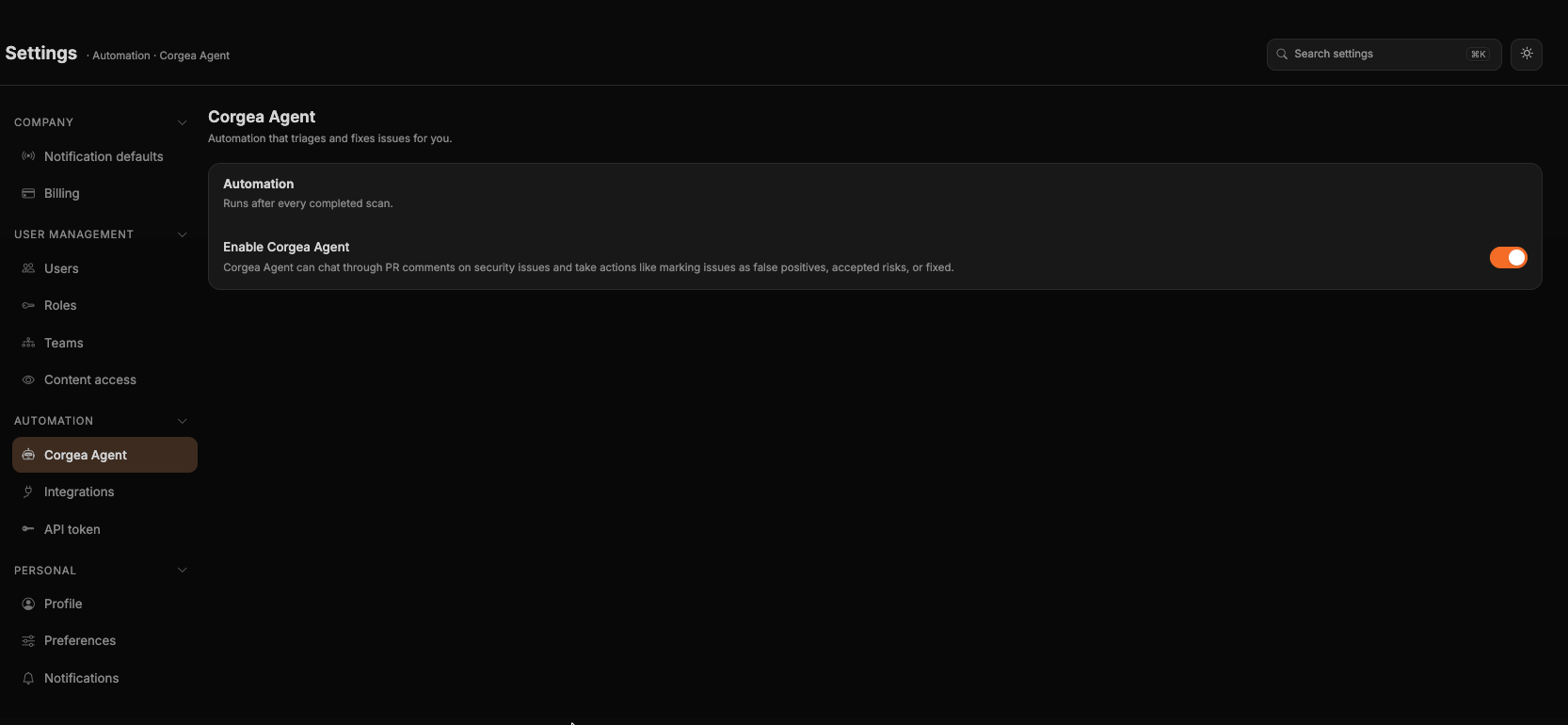
2
Verify Permissions
Ensure your Corgea integration has necessary permissions to:
- Read pull request comments
- Post comments on pull requests
- Access repository content
3
Test the Connection
- Create a test PR with a security issue
- Comment
helloon any vulnerability in the PR to verify the agent responds - Access the web chat interface to ask a question about your scans
Web Chat Interface
Accessing the Chat
Open Corgea Agent in the sidebar to access the interactive AI assistant.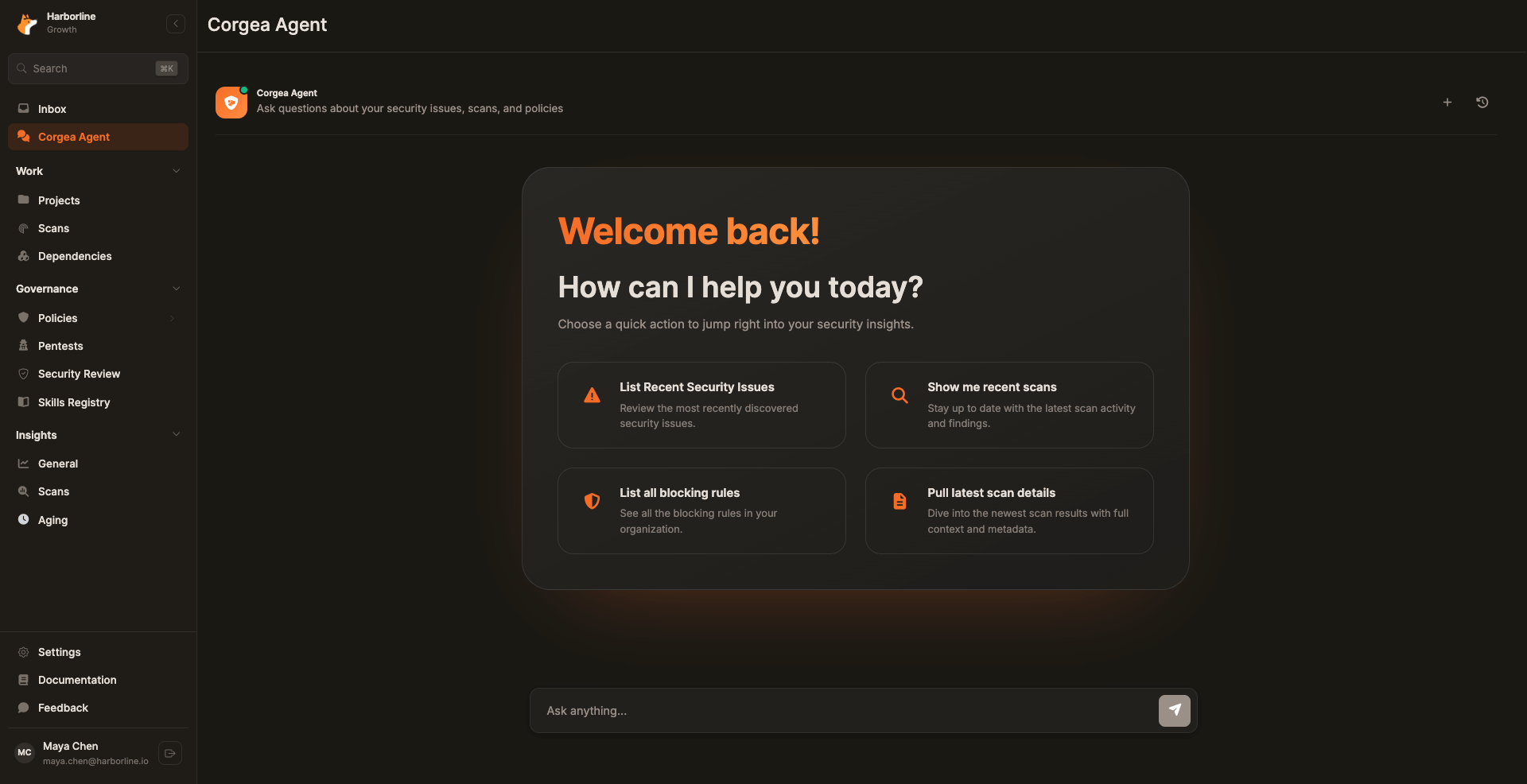
What You Can Do
The Corgea Agent has deep knowledge of your security posture and can help you:Explore Security Issues
Get detailed information about specific vulnerabilities, understand severity levels, and review fix suggestions
Analyze Scans
Review scan results and summaries, compare scans over time, and understand scan coverage
Query Vulnerability Data
List issues by severity, project, or type, and review blocking rules and policy violations
Example Queries
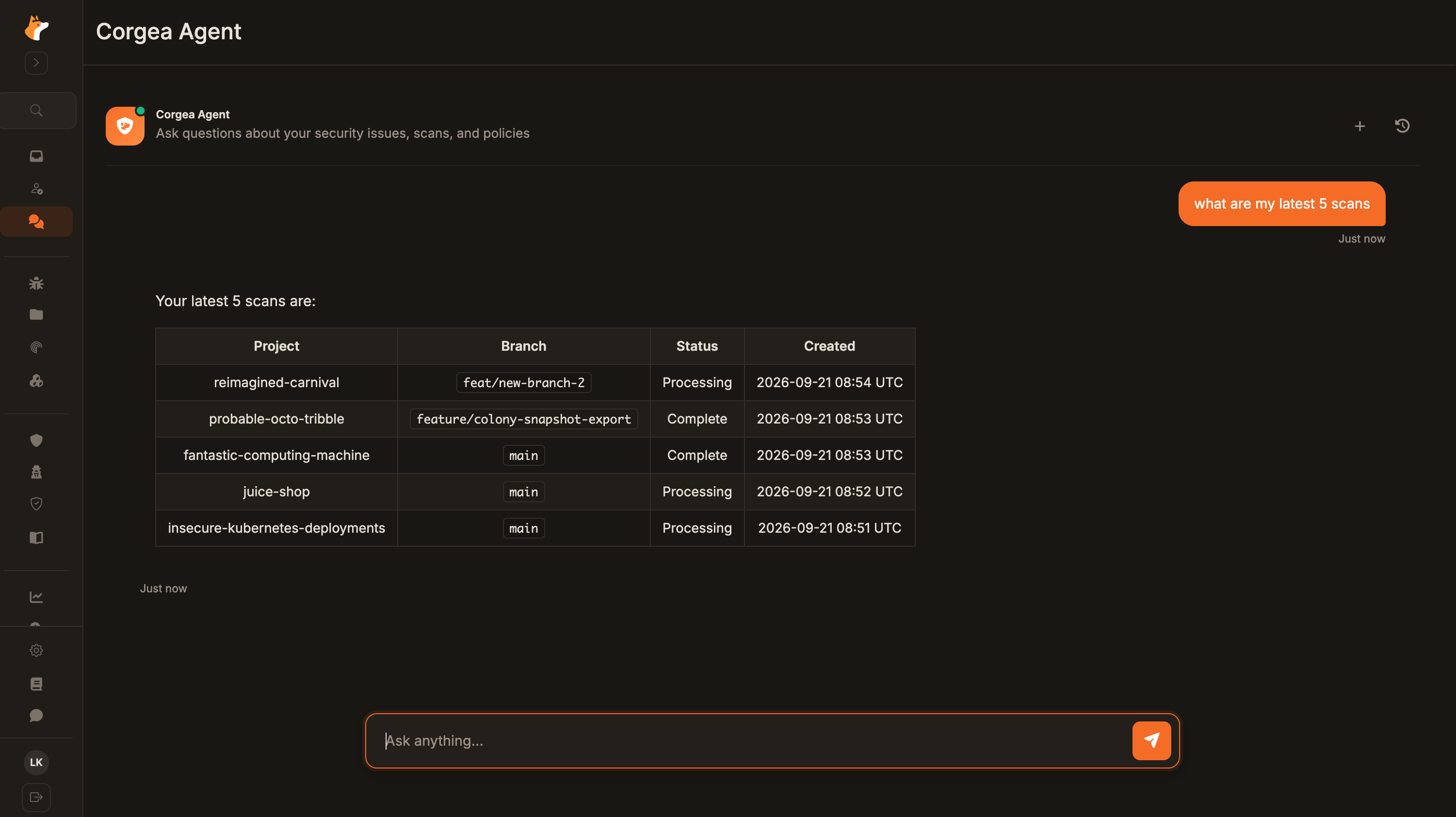
Example Chat Queries
Documentation, Charts, and Downloads
Ask the agent how to use Corgea features. It can consult Corgea documentation and include relevant links and screenshots in its answers. You can also ask for charts of scans, scan duration, findings introduced versus resolved, average time to fix by severity, open code findings by severity, or the most common open finding types. Specify a project and time range when relevant. Charts require reporting permission and a plan that includes reporting, and use only projects you can access. Ask for a CSV download of a completed scan’s security or code quality findings. Dependency exports are also available. Downloads respect your scan and project access. To return to a conversation, open it from chat history or bookmark its URL. You can open a history link in a new tab. Conversations are private to your account within your current company.Context Documents
Company admins can add guidance under Settings → Automation → Corgea Agent → Context Documents. Use these documents for your organization’s processes, policies, and coding standards; the web chat agent reads relevant enabled documents when answering. Choose Add document, enter a title and content, and optionally describe when the document should be used. Content can be plain text or Markdown, up to 50,000 characters per document. Each company can store up to 50 documents. Admins can edit, enable, disable, or delete them. Context documents guide answers; they do not grant permissions or bypass triage approvals.Pull Request Interactions
How It Works
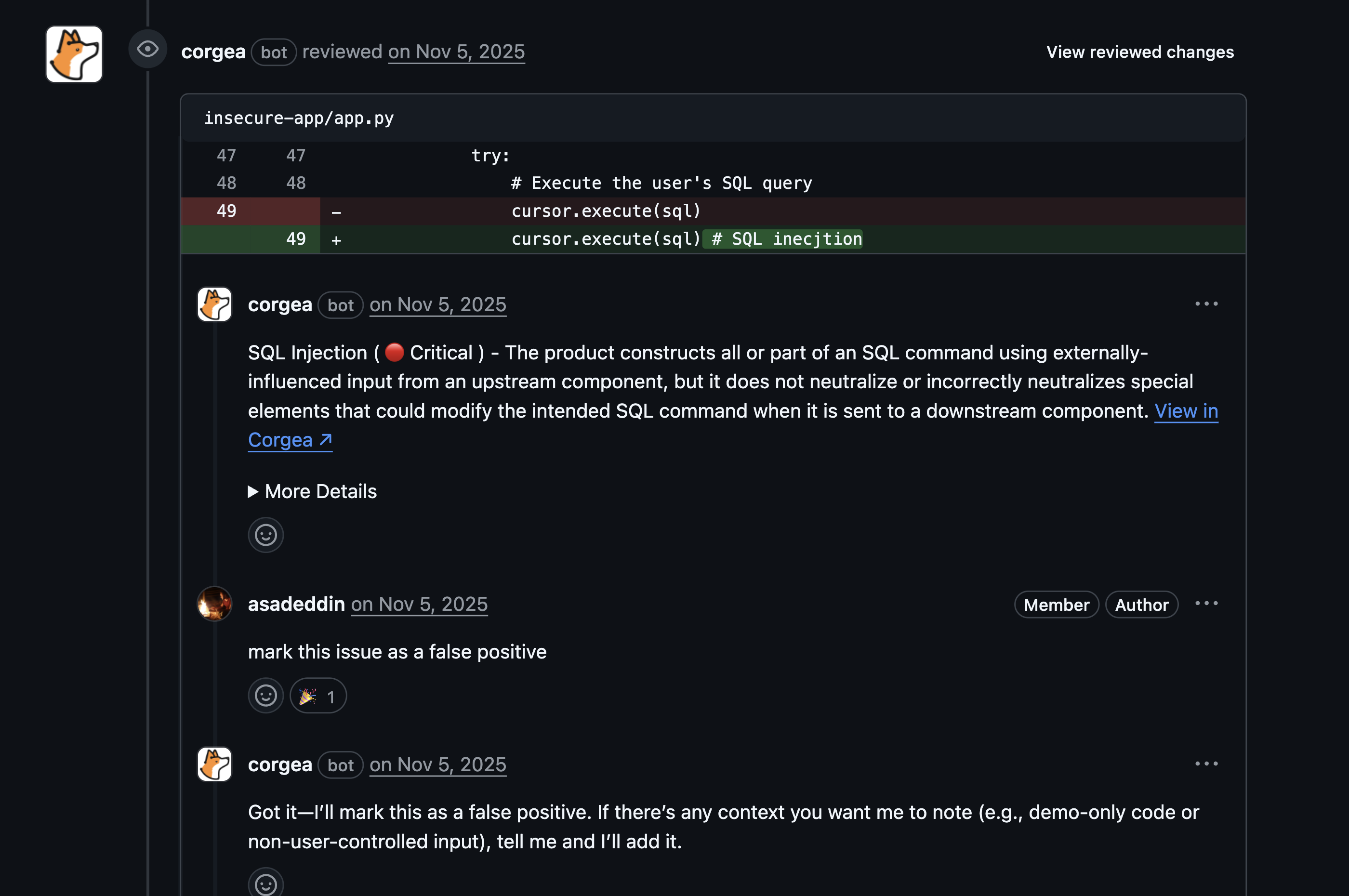
When Corgea detects security issues in a pull request, the agent automatically:- Posts comments highlighting the vulnerabilities
- Monitors the PR for developer responses
- Interprets developer intent from comments
- Takes automated actions based on commands
Acknowledgements and Fix Feedback
On GitHub and GitLab, a successfully recorded status change or fix-feedback comment is normally acknowledged with a 👍 reaction instead of a text reply. This means the action was recorded, including negative feedback about a fix. Questions, requests for a reason, and refused actions still receive text replies. If the reaction cannot be added, Corgea falls back to a text reply. With Corgea Agent enabled, react with 👍 or 👎 to Corgea’s finding comment to give feedback on the suggested fix. These reactions vote on the fix; they do not change the finding’s status. GitHub reactions may take a few minutes to appear in Corgea. For GitLab, enable the Emoji events webhook trigger. Reaction feedback is visible in Feedback History. If the agent declines to change a finding’s status or request another fix from a comment, use the Corgea app to perform that action.Triggering the Agent
The agent responds to comments that:- Explicitly mention
@Corgea - Reply directly to Corgea’s issue comment
- Contain recognizable action commands
- Are directed at addressing security findings
You don’t need to use
@Corgea as the agent will respond to comments to it’s own.Supported Actions
Mark as False Positive
Mark as False Positive
Explain why the reported issue is not a real vulnerability. A bare “false positive” request is not enough; Corgea asks for more detail and leaves the issue unchanged until you provide a meaningful reason. See Triage Justifications.Example Comments:What Happens:
- Issue is marked as “False Positive”
- Issue is removed from blocking status
- Feedback is recorded for analysis
Mark as Accepted Risk
Mark as Accepted Risk
Acknowledge a real vulnerability but accept the risk without immediate remediation.Include the reason. A bare “accept risk” is answered with a request for one—see Triage Justifications.Example Comments:What Happens:
- Issue status changes to “Accepted Risk”
- Issue no longer blocks PR
- Risk acceptance is logged
Mark as Fixed
Mark as Fixed
Confirm that a vulnerability has been resolved.Example Comments:What Happens:
- Issue status changes to “Fixed”
- Issue no longer appears in active findings
- Fix confirmation is recorded
Mark as Duplicate
Mark as Duplicate
Flag an issue as a duplicate of an existing finding.Example Comments:What Happens:
- Issue is marked as duplicate
- Linked to original issue (if specified)
- Removed from active count
Mark as In Progress
Mark as In Progress
Indicate that work is underway to fix the issue.Example Comments:What Happens:
- Issue status changes to “Fix In Progress”
- Tracked as actively being addressed
- Team can monitor progress
Request More Information
Request More Information
Ask Corgea for additional details about a vulnerability.Example Comments:What Happens:
- Agent provides detailed explanation
- Includes vulnerability context and remediation guidance
- May suggest related resources
Comment Interaction Examples
- False Positive
- Accepted Risk
- Dismissal Without a Reason
- Request Context
Scenario: Developer disagrees with findingAgent Response:
PR Comment
Feedback History
View all PR comment interactions in the Feedback History tab under Settings → Automation → Corgea Agent:- See all actions taken via PR comments
- Open an entry to view the original comment, AI reasoning, and the agent response in one place
- Filter by action type, user, or date range
- Monitor team engagement with security findings
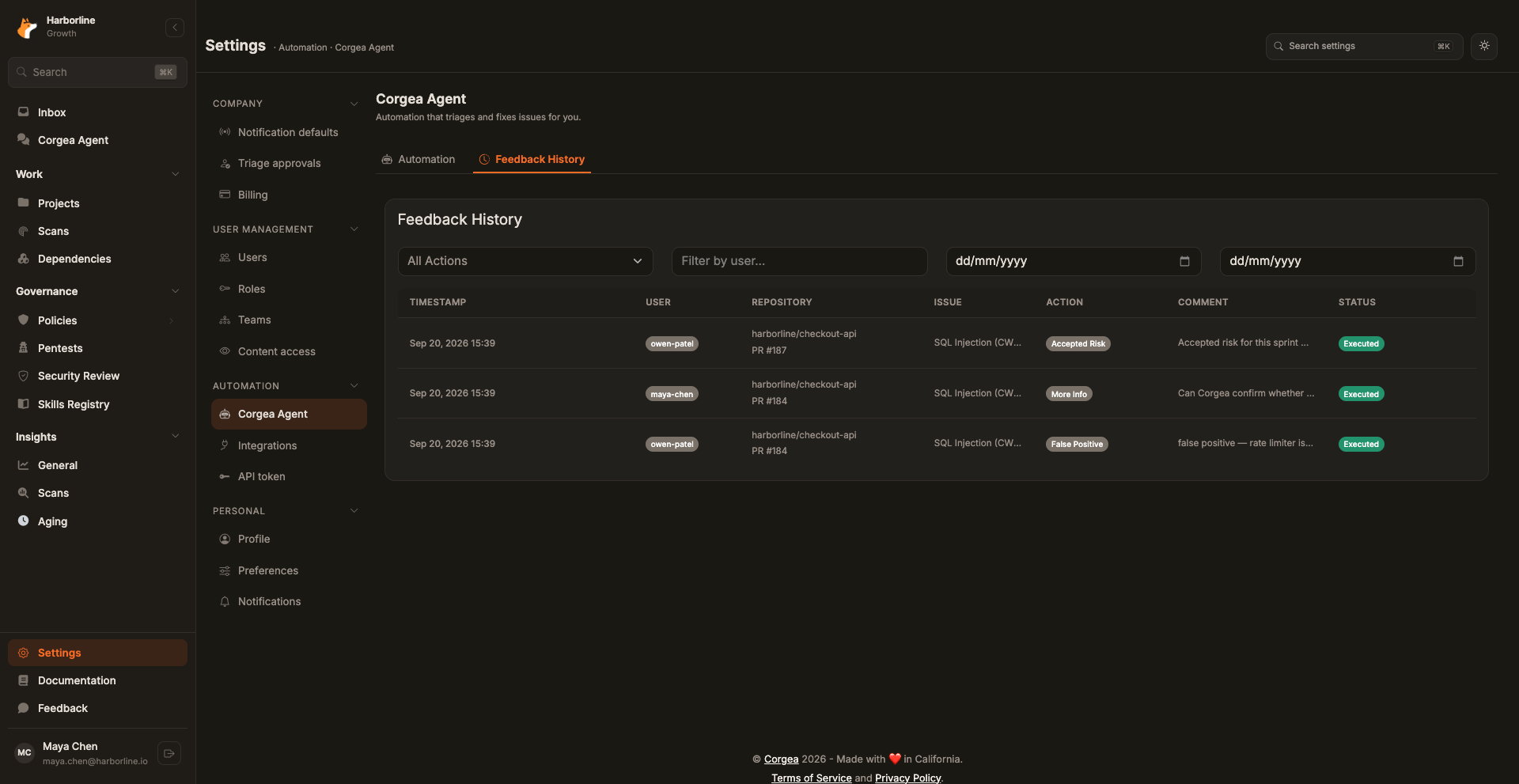
- Action Type (False Positive, Accepted Risk, Fixed, etc.)
- GitHub/GitLab/Azure DevOps user
- Date range
Supported Platforms
Corgea Agent works seamlessly across multiple development platforms:- GitHub
- GitLab
- Azure DevOps
- Bitbucket
- Pull request comments
- Issue comments
- Review threads
Requires: GitHub App installation with appropriate permissions
Troubleshooting
Agent Not Responding to PR Comments
Agent Not Responding to PR Comments
Check:
- Is the agent enabled in Settings → Automation → Corgea Agent?
- Are webhooks properly configured for your repository?
- Did you mention
@Corgeaor reply to an agent comment? - Is your integration active and properly authenticated?
- Verify webhook delivery in your platform’s webhook settings
- Check integration status in Corgea dashboard
- Re-authenticate if needed
Action Not Applied to Issue
Action Not Applied to Issue
Check:
- Does your comment clearly state the intended action?
- Are you commenting on the correct issue?
- Do you have permissions to modify issues?
- Use explicit commands like “@Corgea false positive, the input is escaped by the template engine”—a dismissal needs a reason
- Check the Feedback History to see how your comment was interpreted
Chat Not Loading or Responding
Chat Not Loading or Responding
Check:
- Browser console for JavaScript errors
- Network connectivity
- Account permissions
- Refresh the page
- Clear browser cache
- Contact support if issue persists
Best Practices
- PR Comments
- Web Chat
One Action Per Comment: Keep comments focused on a single action
Provide Context: Add reasoning to help the team understand your decision
Review Feedback History: Periodically check how your commands are interpreted
Privacy & Security
- PR comment actions are logged and auditable in Feedback History
- Agent responses never expose sensitive credentials or internal implementation details
- Data is processed in compliance with Corgea’s security standards