
Overview
JWT Token authentication lets you call the Corgea API using Bearer tokens issued directly by your identity provider (IdP) — such as Microsoft Entra ID or Okta — instead of a user-specific Corgea API token. This is the recommended approach for system-to-system integrations (CI/CD pipelines, automated scanners, internal tooling) where you want:- Tokens tied to a service principal or app registration rather than a specific user account
- Token lifetime and scope controlled by your IdP
- Centralized revocation through your IdP without touching Corgea
How It Works
- Your system requests an access token from your IdP using client credentials (client ID + secret).
- The IdP returns a signed JWT containing claims such as
iss(issuer) andaud(audience). - Your system passes the token as a
Bearertoken in theAuthorizationheader when calling the Corgea API. - Corgea validates the token signature against the IdP’s public keys and checks that the
iss,aud, andappid/cidclaims match your registered configuration.
Using JWT with Corgea CLI
You can use a JWT access token directly with the CLI login flow:Setting Up JWT Auth in Corgea
Navigate to Settings → Automation → Integrations and click + Add in the JWT Auth section.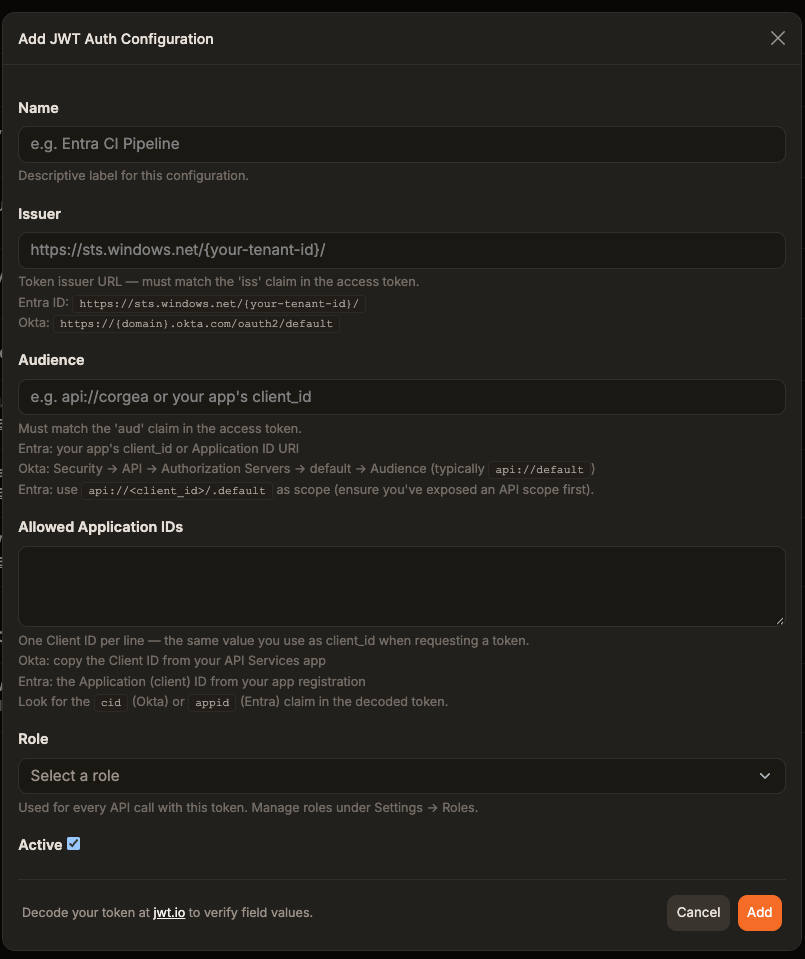
Use jwt.io to decode an access token from your IdP and verify the exact values of
iss, aud, and appid/cid before filling in this form.- Entra ID issuer:
https://sts.windows.net/{your-tenant-id}/ - Entra ID audience: your app’s Application ID URI (e.g.,
api://{client_id}) — set via Expose an API in Entra - Okta issuer:
https://{domain}.okta.com/oauth2/default - Okta audience:
api://default(or the custom authorization server audience)
Microsoft Entra ID Setup
1
Register an application in Entra
In the Azure portal, go to Microsoft Entra ID → App registrations → New registration. Give the app a descriptive name (e.g.,
corgea-cicd) and register it.2
Expose an API and set the Application ID URI
Go to Expose an API in your app registration. Set or confirm the Application ID URI — this becomes the 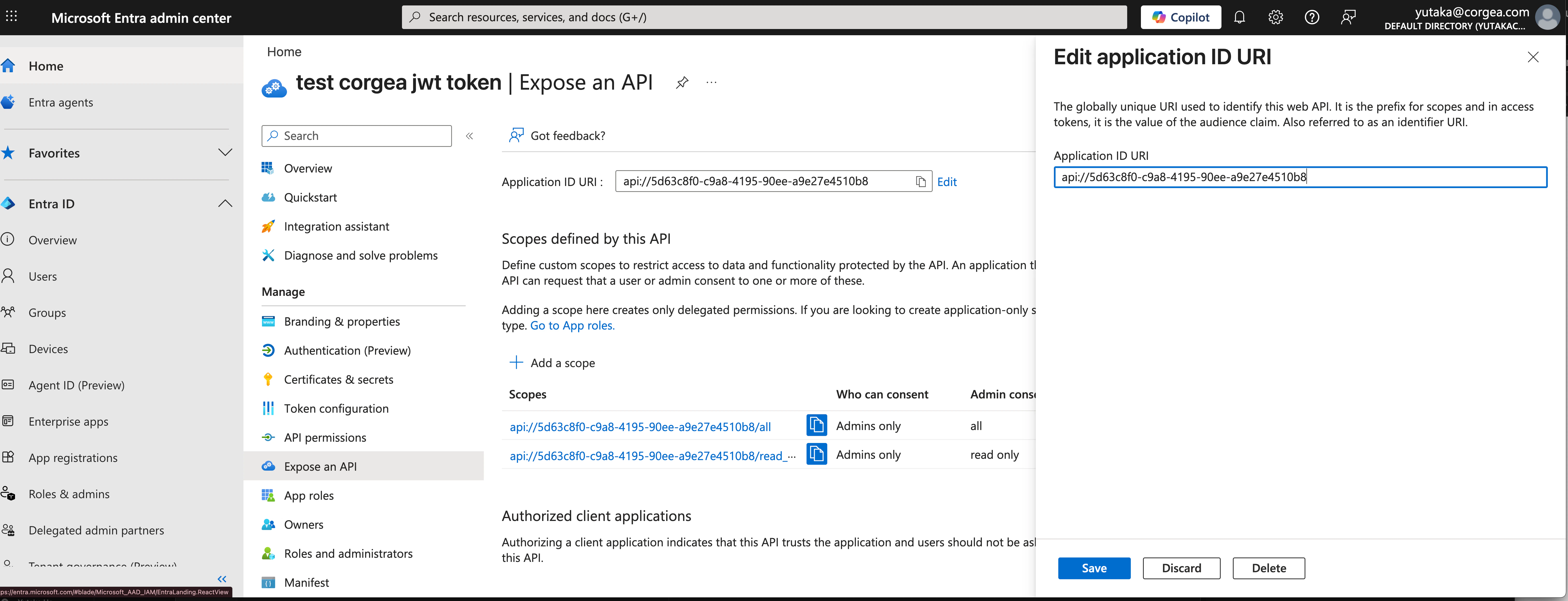
aud claim in tokens issued for this app.api://5d63c8f0-c9a8-4195-90ee-a9e27e4510b8) — you will enter this as the Audience in Corgea.3
Create a client secret
Go to Certificates & secrets → New client secret. Add a description and set an expiry, then click Add.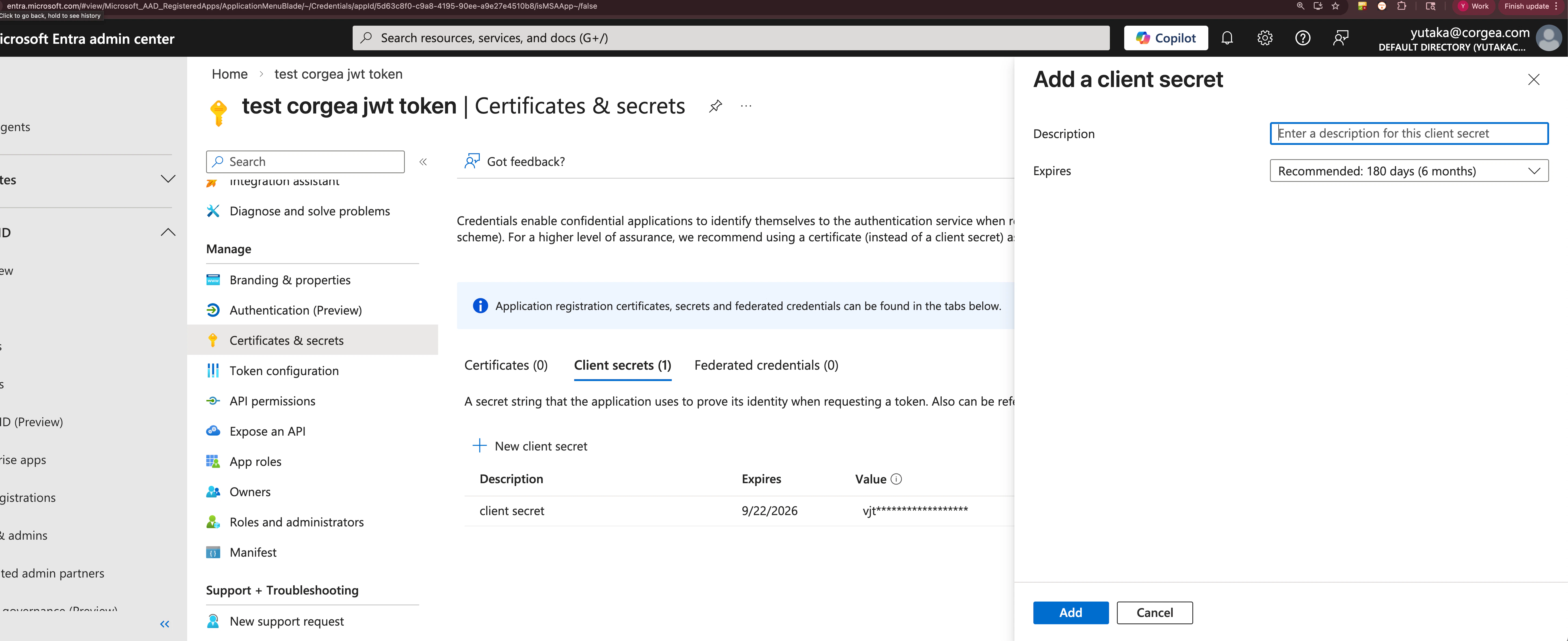
4
Request an access token
Your system requests a token from Entra using the client credentials flow:The response contains an
access_token. Pass this as a Bearer token when calling Corgea:Replace
https://www.corgea.app with https://your_instance.corgea.app if you are on a private deployment.5
Register the configuration in Corgea
In Corgea’s Add JWT Auth Configuration form, enter:
- Issuer:
https://sts.windows.net/{your-tenant-id}/ - Audience: the Application ID URI from Step 2 (e.g.,
api://5d63c8f0-...) - Allowed Application IDs: the Application (client) ID from your app registration
Testing with Postman
If you prefer a GUI over curl, you can test the token request and API call directly in Postman. Import a curl command Postman can convert any of the curl commands above into a request. Click Import in the top-left, paste the curl command, and Postman will populate the method, URL, headers, and body automatically.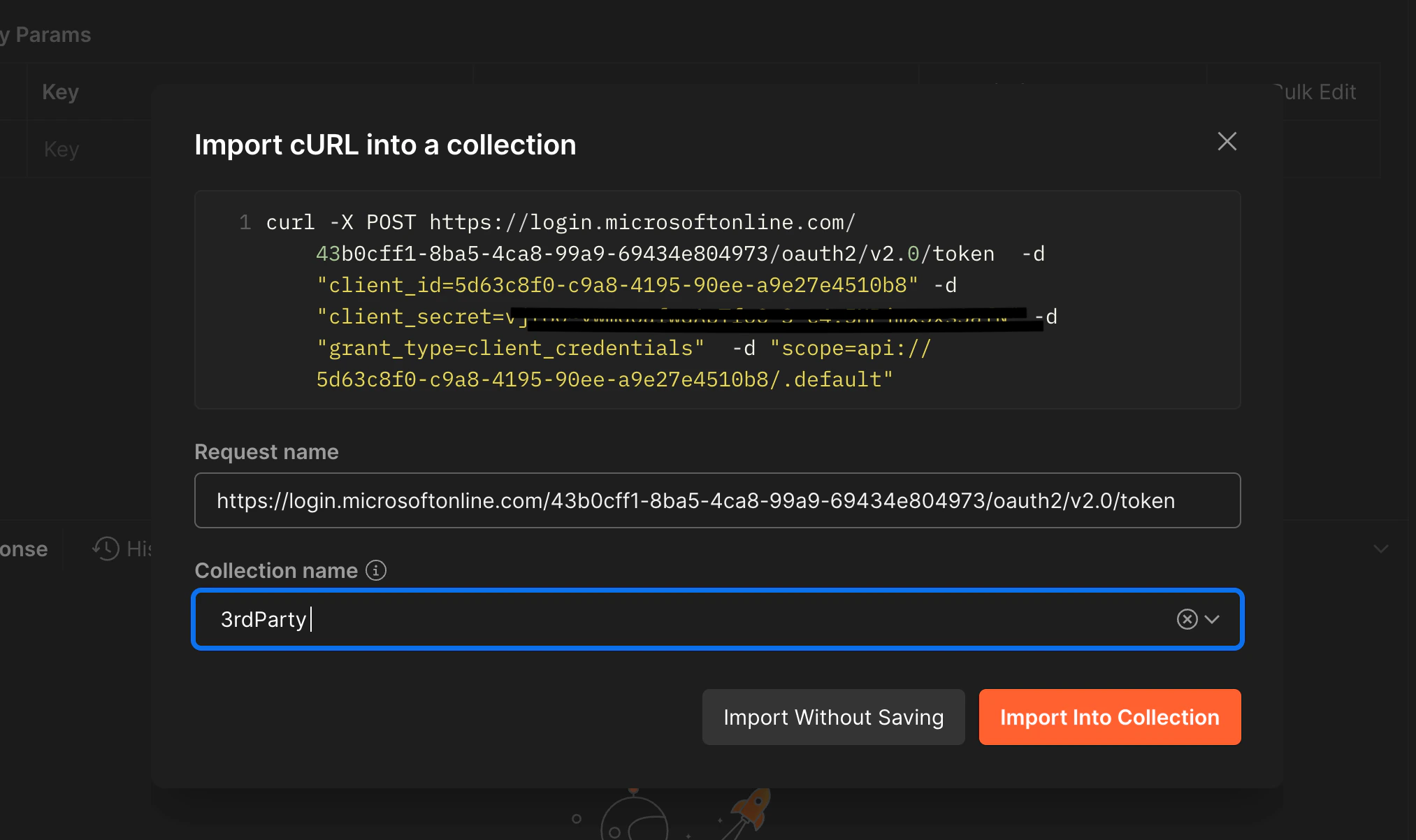
tenant-id, client_id, client_secret, and scope in the body fields, then send the request. Copy the access_token value from the response.
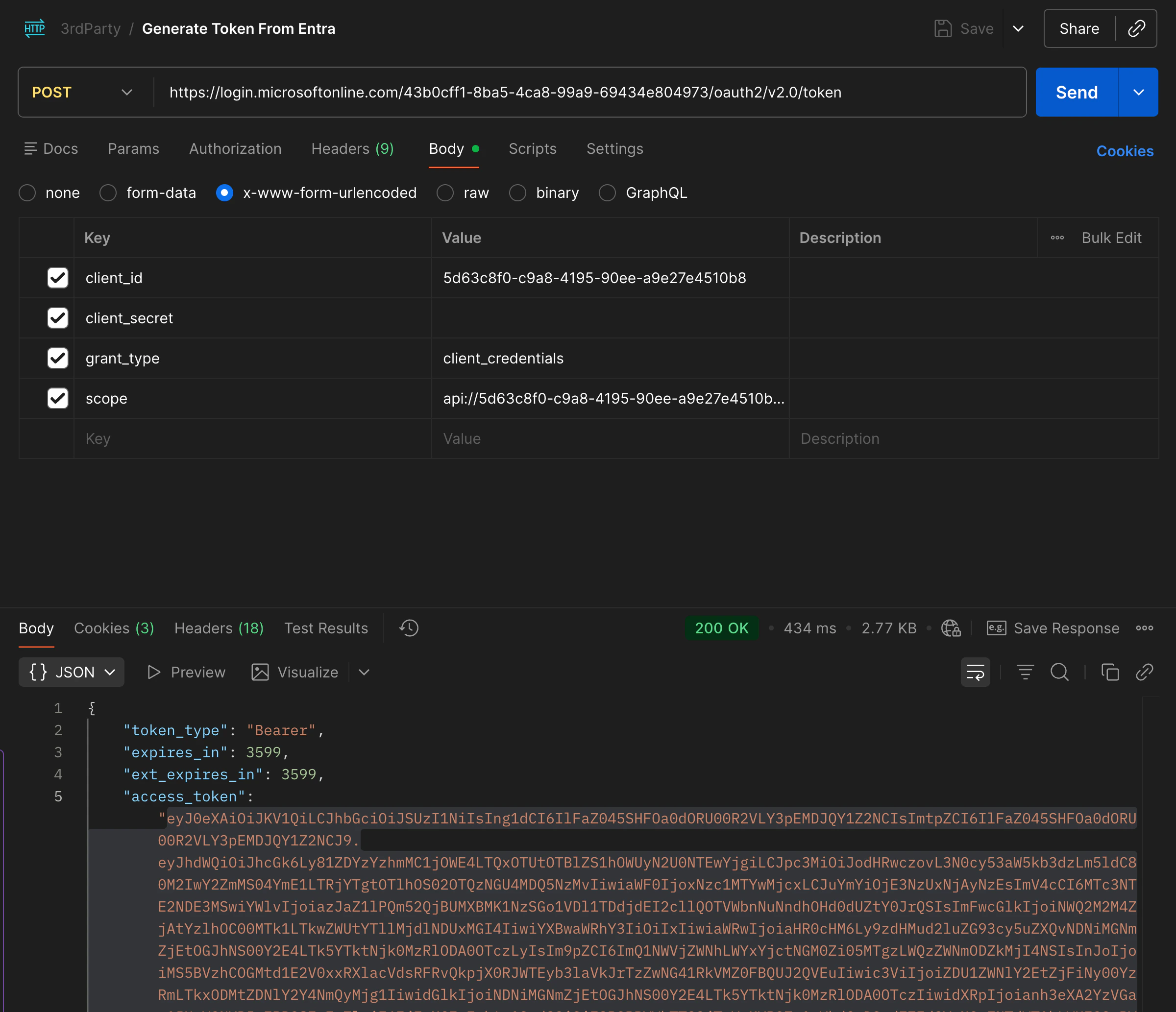
access_token.
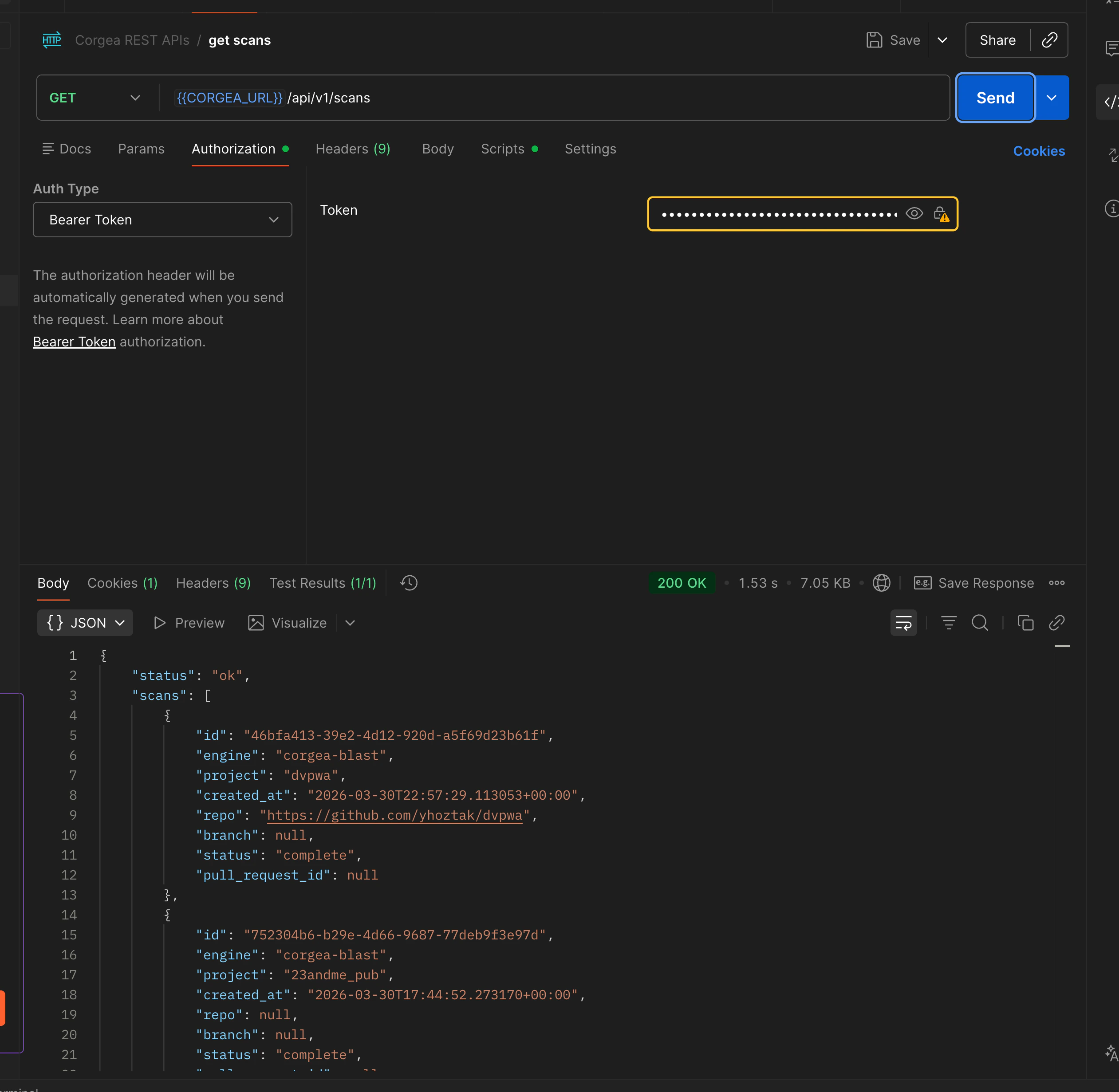
If your company restricts outbound network access, you may need to configure a proxy. In Postman, go to Settings → Proxy and add your corporate proxy. For curl, set the
HTTPS_PROXY environment variable or pass --proxy https://your-proxy:port.Verifying Your Token
Use jwt.io to decode an access token before configuring Corgea. Paste your token in the debugger and inspect the Decoded Payload to confirm theiss, aud, and appid values.
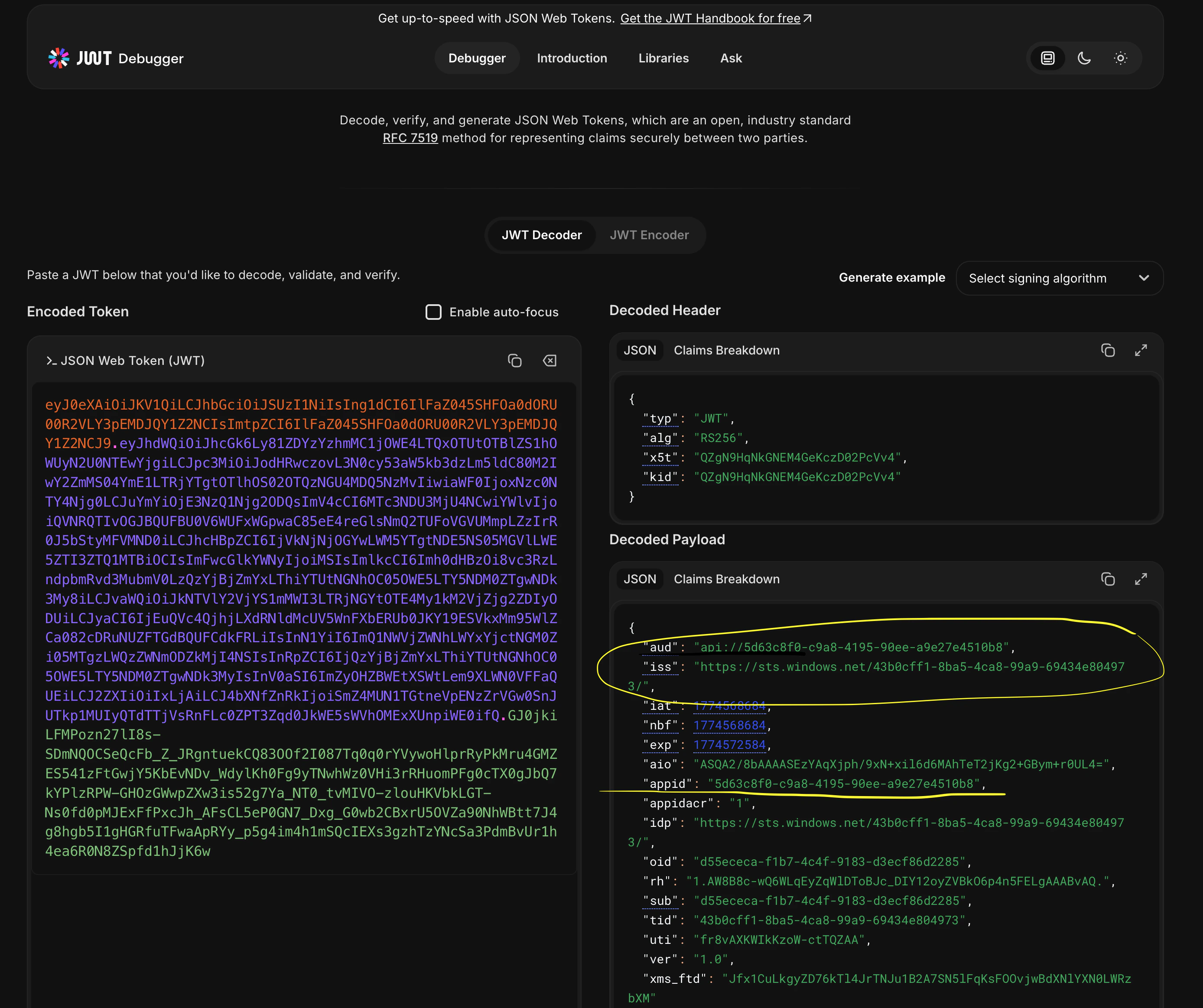
aud and iss fields are exactly what Corgea checks when validating incoming requests.
Troubleshooting
- 401 Unauthorized: Decode your token at jwt.io and confirm
iss,aud, andappidexactly match the values in your Corgea JWT Auth configuration. - Token rejected after rotation: If you rotated your client secret, ensure the new secret is updated in your CI/CD environment. The Corgea configuration itself does not need to change since it validates token claims, not the secret.
- Multiple environments: Create a separate JWT Auth configuration in Corgea for each application or environment (e.g., staging vs. production) using distinct app registrations with different client IDs.
Network connectivity issues
If the token request or API call fails with a connection error, use these commands to investigate whether a firewall or proxy is blocking the traffic.login.microsoftonline.com and www.corgea.app.