> ## Documentation Index
> Fetch the complete documentation index at: https://docs.corgea.app/llms.txt
> Use this file to discover all available pages before exploring further.
# Scheduled Scans
> Automatically run security scans on a recurring schedule
**Prerequisite** You have a connected repository (GitHub, GitLab, Azure DevOps, or Harness) and Scheduled Scans enabled on your plan. See [Corgea pricing](https://corgea.com/pricing/) to enable this feature.
Scheduled Scans let you automatically trigger security scans across your projects on a recurring cadence — without manual intervention. You can scope scans to specific projects, tags, or teams, choose which scan types to run, and control the frequency from daily to yearly.
## Viewing Scheduled Scans
Open **Policies → Scheduled Scans** in the sidebar. The **Security Scan Schedules** page lists all configured schedules for your organization, along with their status, frequency, scope, and last-run outcome.
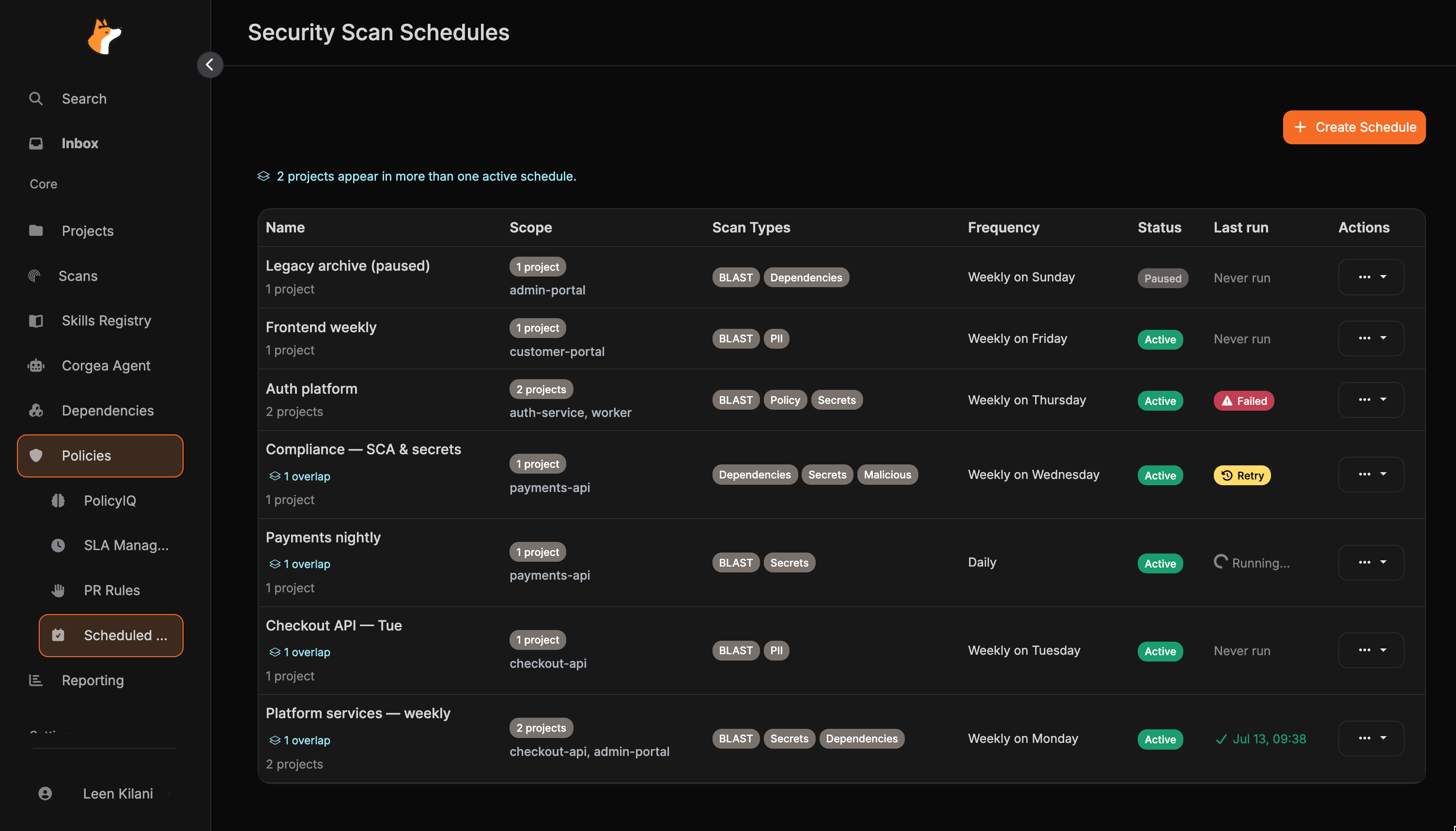 Each row shows:
* **Name** — a label for the schedule (plus an overlap link when the same project appears on another active schedule)
* **Scope** — how many projects are targeted, plus the project names when three or fewer are selected, the tag names for a tag-scoped schedule, or the team names for a team-scoped schedule
* **Scan Types** — which scanners will run (e.g., BLAST, Secrets, PII)
* **Frequency** — how often the scan runs
* **Status** — whether the schedule is active or paused
* **Last run** — the outcome of the most recent attempt
| Last run | Meaning |
| ------------- | -------------------------------------------------------------------------------------------------------- |
| **Never run** | The schedule has not completed a run yet |
| ✓ timestamp | The last run succeeded |
| **Running…** | A run is in progress (the list updates as it finishes) |
| **Failed** | One or more projects failed — select the badge for per-project reasons |
| **Retry** | The run was skipped to avoid a duplicate scan — select the badge for details, then try **Run Now** again |
From the list you can **edit**, **pause/resume**, **run immediately**, or **delete** any schedule.
## Overlapping coverage
When the same project is included in more than one **active**, project-scoped schedule, Corgea surfaces that overlap so you can see where scans may run more often than expected.
* A banner at the top of the list shows how many projects appear in more than one active schedule
* Affected schedules show an **overlap** link under the name — select it to see which projects are shared and which other schedules include them
Each row shows:
* **Name** — a label for the schedule (plus an overlap link when the same project appears on another active schedule)
* **Scope** — how many projects are targeted, plus the project names when three or fewer are selected, the tag names for a tag-scoped schedule, or the team names for a team-scoped schedule
* **Scan Types** — which scanners will run (e.g., BLAST, Secrets, PII)
* **Frequency** — how often the scan runs
* **Status** — whether the schedule is active or paused
* **Last run** — the outcome of the most recent attempt
| Last run | Meaning |
| ------------- | -------------------------------------------------------------------------------------------------------- |
| **Never run** | The schedule has not completed a run yet |
| ✓ timestamp | The last run succeeded |
| **Running…** | A run is in progress (the list updates as it finishes) |
| **Failed** | One or more projects failed — select the badge for per-project reasons |
| **Retry** | The run was skipped to avoid a duplicate scan — select the badge for details, then try **Run Now** again |
From the list you can **edit**, **pause/resume**, **run immediately**, or **delete** any schedule.
## Overlapping coverage
When the same project is included in more than one **active**, project-scoped schedule, Corgea surfaces that overlap so you can see where scans may run more often than expected.
* A banner at the top of the list shows how many projects appear in more than one active schedule
* Affected schedules show an **overlap** link under the name — select it to see which projects are shared and which other schedules include them
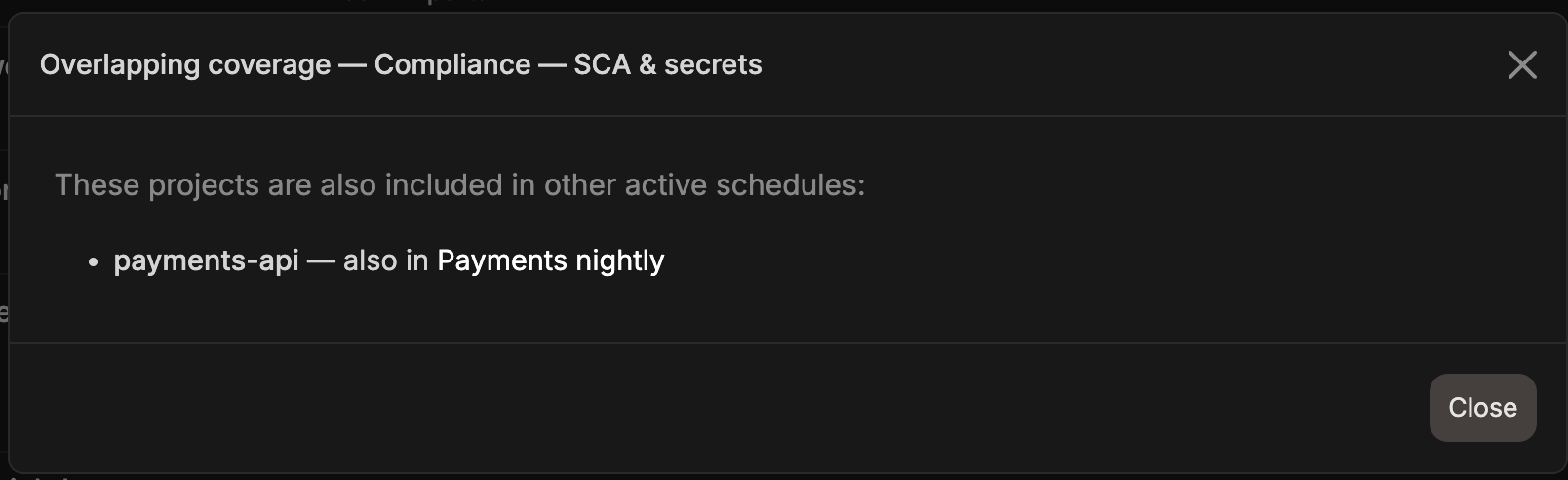 Overlap detection currently applies to **project-scoped** schedules only. Tag- and team-scoped coverage is not included in overlap warnings yet.
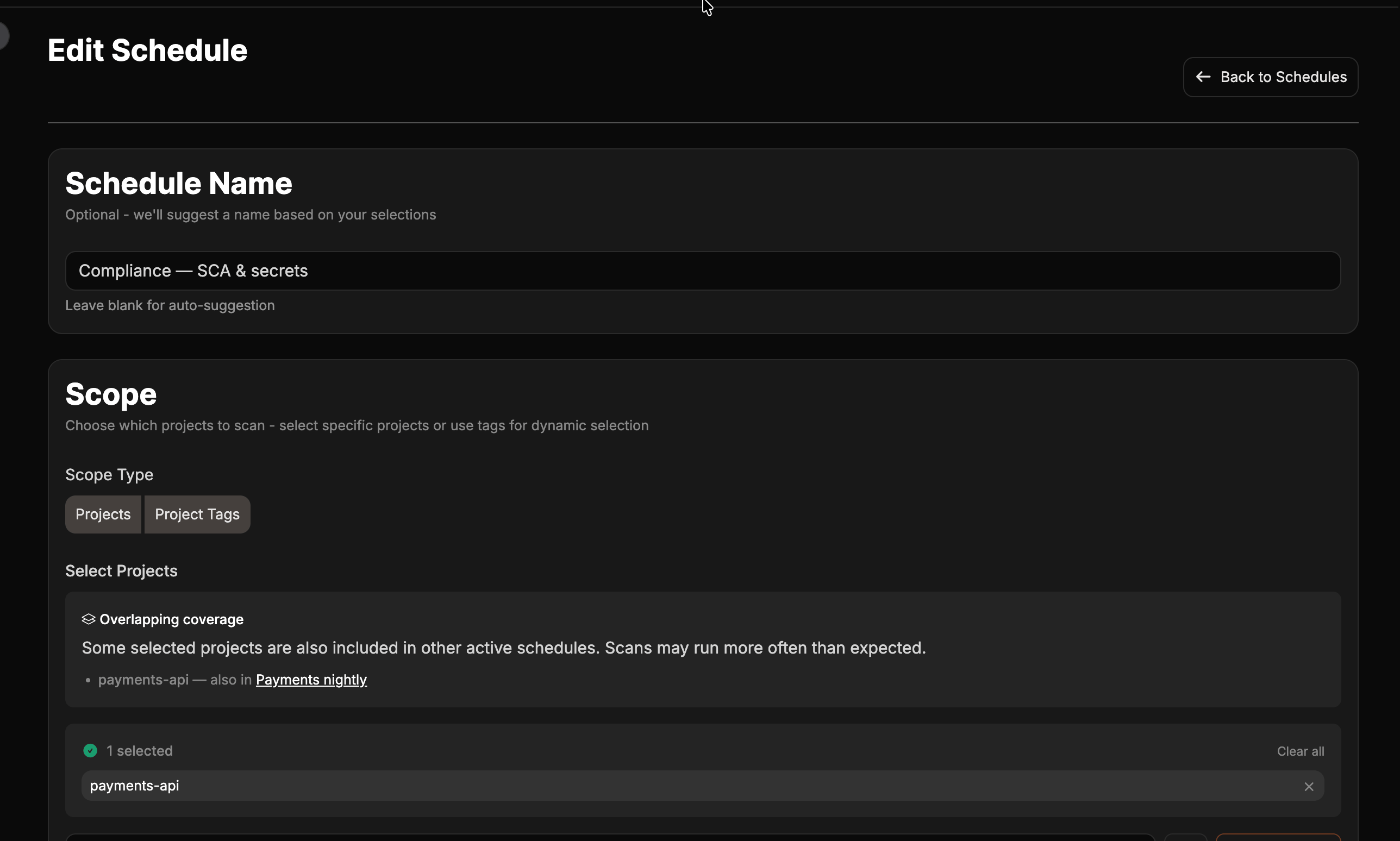
When you create or edit a project-scoped schedule, Corgea also warns inline if a selected project already belongs to another active schedule:
Overlap detection currently applies to **project-scoped** schedules only. Tag- and team-scoped coverage is not included in overlap warnings yet.
When you create or edit a project-scoped schedule, Corgea also warns inline if a selected project already belongs to another active schedule:
 ## Creating a Scheduled Scan
Click **Create Schedule** to open the schedule creation form.
Give your schedule a descriptive name. If left blank, Corgea will auto-generate one based on the scope and frequency.
Choose how to target projects:
* **Projects** — pick one or more specific repositories from your connected integrations
* **Tags** — target all projects that share one or more labels (useful for scanning a service tier, team, or environment)
* **Teams** — target projects that are assigned to one or more selected teams
Using tags makes it easy to automatically include new projects in a schedule as your organization grows — no need to update the schedule manually.
Select which scanners to run. Multiple scan types can be combined in a single schedule.
| Scan Type | What it detects |
| ---------------- | -------------------------------------------- |
| **BLAST** | Security vulnerabilities in application code |
| **Policy** | Violations of your custom PolicyIQ rules |
| **PII** | Personally identifiable information exposure |
| **Dependencies** | Vulnerable third-party packages (SCA) |
| **Secrets** | Hardcoded credentials and API keys |
| **Malicious** | Malicious code patterns |
**Dependencies** schedules report reachability status for each finding when reachability analysis is enabled on your plan. This applies to every dependency scan, not just scheduled ones.
Select how often the scan should run:
| Frequency | Description |
| ------------- | ------------------------------------------------------------------- |
| **Daily** | Runs every day |
| **Weekly** | Runs on a specific day of the week |
| **Monthly** | Runs on a specific day of the month (or the last day) |
| **Quarterly** | Runs on a specific day each quarter (January, April, July, October) |
| **2×/Year** | Runs twice a year on two months you specify |
| **Yearly** | Runs once a year on a specific month and day |
**Daily** is only offered if daily scheduled scans are enabled on your plan. If you do not see it, the other frequencies are still available.
Click **Create**. The schedule is immediately set to **active** and Corgea will calculate the next run time based on your chosen frequency. When editing an existing schedule, the same button is labeled **Save**.
## Running a Scan Immediately
You can trigger any schedule to run right away by selecting **Run Now** from the schedule's actions menu. The **Last run** column shows **Running…** while the run is in progress, then updates to a success timestamp, **Failed**, or **Retry**.
Corgea enforces a 24-hour cooldown after a **successful** run or while a run is already active. Failed attempts and retryable skips can be retried immediately with **Run Now**.
If a run does not finish (for example, an interrupted attempt), the schedule stays retryable instead of remaining blocked for a full 24 hours — select **Run Now** again.
## Last run failures
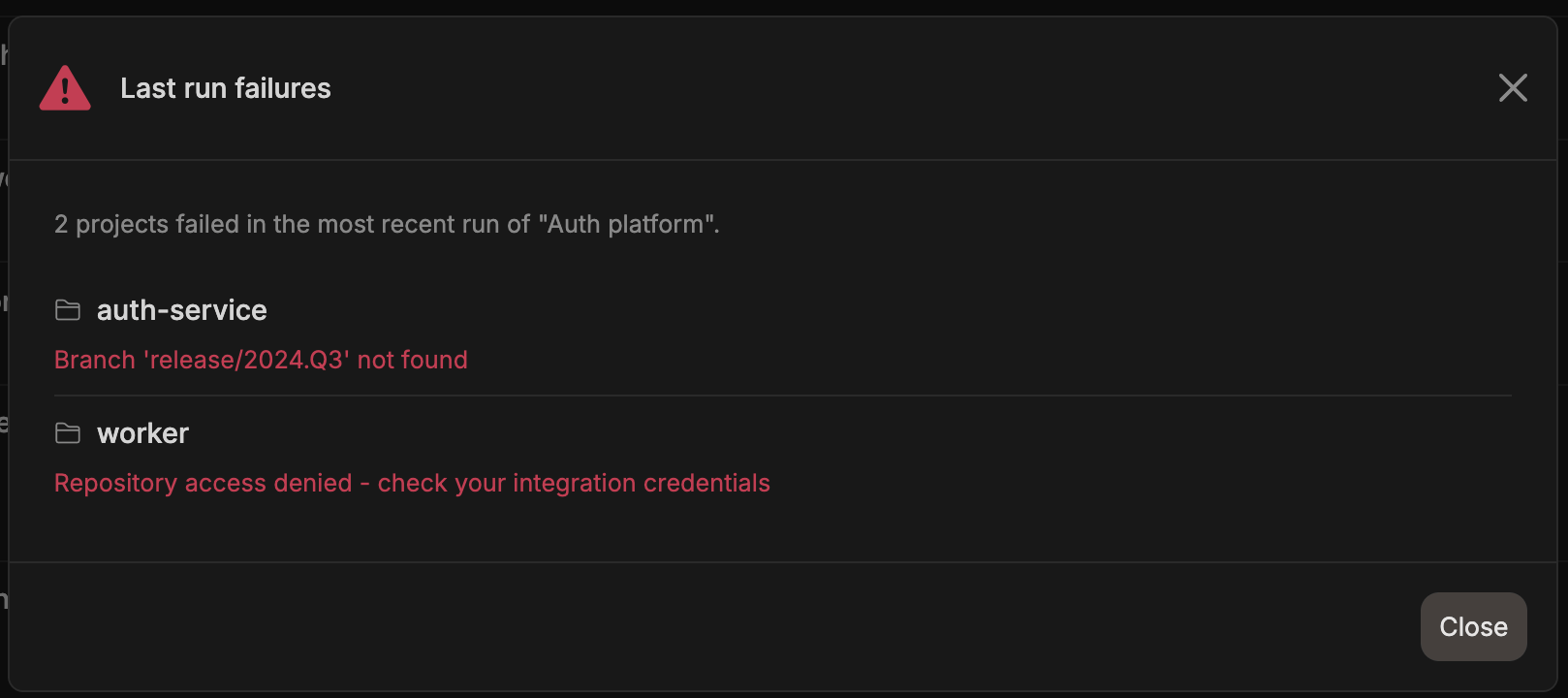
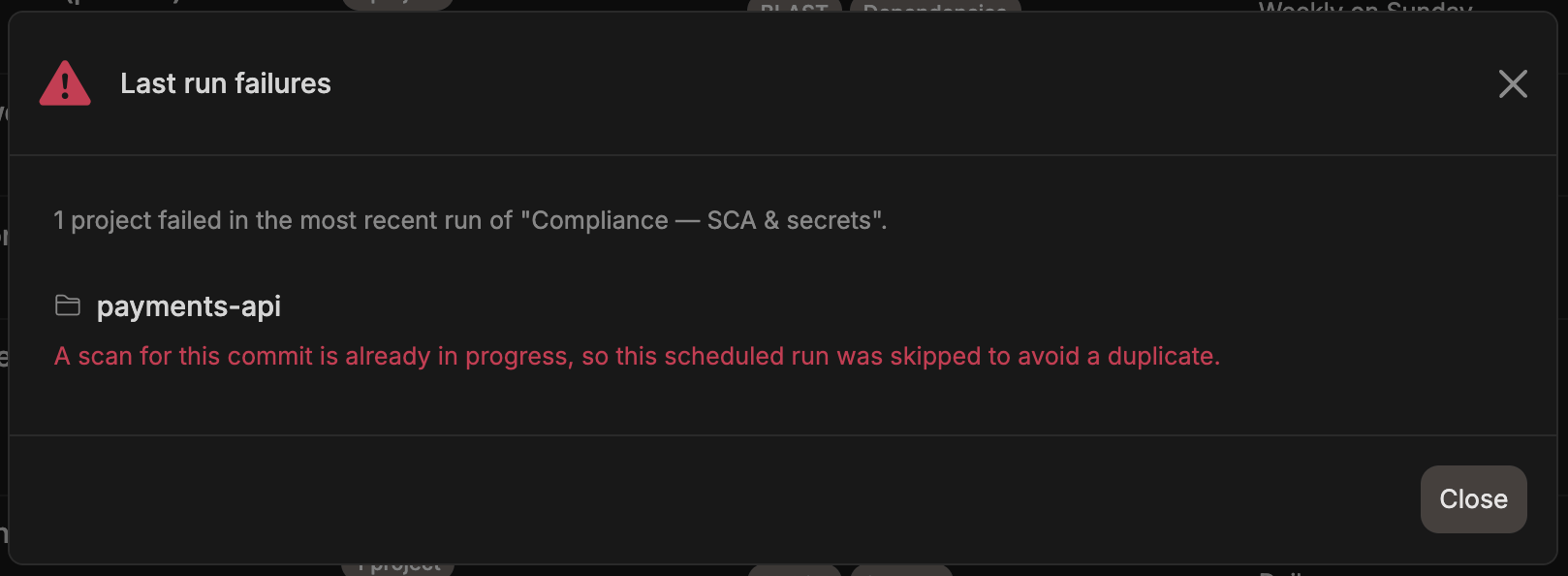
When **Last run** shows **Failed**, select the badge to open **Last run failures**. The modal lists each affected project and the reason it failed:
## Creating a Scheduled Scan
Click **Create Schedule** to open the schedule creation form.
Give your schedule a descriptive name. If left blank, Corgea will auto-generate one based on the scope and frequency.
Choose how to target projects:
* **Projects** — pick one or more specific repositories from your connected integrations
* **Tags** — target all projects that share one or more labels (useful for scanning a service tier, team, or environment)
* **Teams** — target projects that are assigned to one or more selected teams
Using tags makes it easy to automatically include new projects in a schedule as your organization grows — no need to update the schedule manually.
Select which scanners to run. Multiple scan types can be combined in a single schedule.
| Scan Type | What it detects |
| ---------------- | -------------------------------------------- |
| **BLAST** | Security vulnerabilities in application code |
| **Policy** | Violations of your custom PolicyIQ rules |
| **PII** | Personally identifiable information exposure |
| **Dependencies** | Vulnerable third-party packages (SCA) |
| **Secrets** | Hardcoded credentials and API keys |
| **Malicious** | Malicious code patterns |
**Dependencies** schedules report reachability status for each finding when reachability analysis is enabled on your plan. This applies to every dependency scan, not just scheduled ones.
Select how often the scan should run:
| Frequency | Description |
| ------------- | ------------------------------------------------------------------- |
| **Daily** | Runs every day |
| **Weekly** | Runs on a specific day of the week |
| **Monthly** | Runs on a specific day of the month (or the last day) |
| **Quarterly** | Runs on a specific day each quarter (January, April, July, October) |
| **2×/Year** | Runs twice a year on two months you specify |
| **Yearly** | Runs once a year on a specific month and day |
**Daily** is only offered if daily scheduled scans are enabled on your plan. If you do not see it, the other frequencies are still available.
Click **Create**. The schedule is immediately set to **active** and Corgea will calculate the next run time based on your chosen frequency. When editing an existing schedule, the same button is labeled **Save**.
## Running a Scan Immediately
You can trigger any schedule to run right away by selecting **Run Now** from the schedule's actions menu. The **Last run** column shows **Running…** while the run is in progress, then updates to a success timestamp, **Failed**, or **Retry**.
Corgea enforces a 24-hour cooldown after a **successful** run or while a run is already active. Failed attempts and retryable skips can be retried immediately with **Run Now**.
If a run does not finish (for example, an interrupted attempt), the schedule stays retryable instead of remaining blocked for a full 24 hours — select **Run Now** again.
## Last run failures
When **Last run** shows **Failed**, select the badge to open **Last run failures**. The modal lists each affected project and the reason it failed:
 When **Last run** shows **Retry**, the same modal explains that the run was skipped because a scan for that commit was already in progress or being registered:
 ## Managing Schedules
### Pausing and Resuming
Toggle a schedule between **active** and **paused** from the list view. Paused schedules will not run automatically until reactivated, and they are excluded from overlap warnings.
### Editing
Click **Edit** on any schedule to modify its name, scope, scan types, or frequency. Changes take effect on the next scheduled run. Overlap warnings update as you change the project selection.
### Deleting
Click **Delete** to permanently remove a schedule. This does not affect scans that have already been executed.
## How Scans Are Executed
When a scheduled scan runs, Corgea:
1. Resolves the target projects (directly selected, or matched via tags or teams)
2. Downloads the latest code from the configured branch (defaults to the project's default branch)
3. Runs the selected scan types against the code
4. Creates a scan record linked to the schedule run
Corgea also avoids starting a duplicate scan for the same project and commit when another run is already covering that commit. In that case the schedule shows **Retry** instead of reporting a successful run.
You can view results from scheduled scans the same way as any other scan — through the [Fixes](fixes) and project dashboards. Each scheduled scan result is labeled with the schedule name for easy identification.
## Daily Report
When scheduled scan runs from the last 24 hours turn up new findings, Corgea sends a daily summary email to everyone in the company who has the **Daily Scan Report** notification enabled — it is on by default for all users, and admins can change the company default or limit delivery to selected teams. Runs that produced no new findings are left out, and no email is sent if there is nothing new to report. Subscribed webhooks receive the same report. See [Notifications](notifications#daily-scheduled-scan-report) to configure delivery preferences and view the webhook payload schema.
## Troubleshooting
Scheduled Scans requires a compatible plan and must be enabled for your organization. Contact your Corgea account team to enable it.
If a schedule has scope type **Projects** but no projects are selected, scope type **Tags** but no projects match the configured tags, or scope type **Teams** but no projects are assigned to the selected teams, the scan will be skipped. Edit the schedule to verify the scope configuration.
The schedule list shows **Failed** if one or more project scans fail. Select the badge to view the failure reason for each affected project. Common causes:
* The repository is not accessible (check your integration credentials)
* The configured branch does not exist
* The project has no connected integration
Check the reported reason, correct the project or integration configuration, and select **Run Now** to retry. Failed attempts do not need to wait for the 24-hour cooldown.
When the same project fails the same schedule three times in a row for a persistent reason, such as a missing branch or expired credentials, Corgea emails the project owners and company admins and stops including that project in the schedule's automatic runs. Other projects on the schedule continue to run as normal.
Fix the underlying problem, then use **Run Now** to retry — **Run Now** always attempts every project in scope, including skipped ones. The project is included in automatic runs again once a scan succeeds for it. See [Notifications](notifications#scheduled-scan-consecutive-failures) for the email and its delivery settings.
Corgea prevents duplicate scans for the same project and commit. If another run is already in progress or still registering the scan, the schedule shows **Retry** instead of reporting a successful run. Select the badge for the skip reason, wait briefly, then select **Run Now** again.
If the schedule completed successfully within the last 24 hours or is still running, **Run Now** remains blocked. Check the **Last run** column before retrying.
Failed runs and **Retry** outcomes are retryable immediately.
The list banner and per-schedule **overlap** links highlight projects that are selected on multiple active, project-scoped schedules. Review the overlapping coverage modal, then edit one of the schedules if you want to reduce duplicate coverage. Overlap is a warning only — schedules still run as configured.
## Managing Schedules
### Pausing and Resuming
Toggle a schedule between **active** and **paused** from the list view. Paused schedules will not run automatically until reactivated, and they are excluded from overlap warnings.
### Editing
Click **Edit** on any schedule to modify its name, scope, scan types, or frequency. Changes take effect on the next scheduled run. Overlap warnings update as you change the project selection.
### Deleting
Click **Delete** to permanently remove a schedule. This does not affect scans that have already been executed.
## How Scans Are Executed
When a scheduled scan runs, Corgea:
1. Resolves the target projects (directly selected, or matched via tags or teams)
2. Downloads the latest code from the configured branch (defaults to the project's default branch)
3. Runs the selected scan types against the code
4. Creates a scan record linked to the schedule run
Corgea also avoids starting a duplicate scan for the same project and commit when another run is already covering that commit. In that case the schedule shows **Retry** instead of reporting a successful run.
You can view results from scheduled scans the same way as any other scan — through the [Fixes](fixes) and project dashboards. Each scheduled scan result is labeled with the schedule name for easy identification.
## Daily Report
When scheduled scan runs from the last 24 hours turn up new findings, Corgea sends a daily summary email to everyone in the company who has the **Daily Scan Report** notification enabled — it is on by default for all users, and admins can change the company default or limit delivery to selected teams. Runs that produced no new findings are left out, and no email is sent if there is nothing new to report. Subscribed webhooks receive the same report. See [Notifications](notifications#daily-scheduled-scan-report) to configure delivery preferences and view the webhook payload schema.
## Troubleshooting
Scheduled Scans requires a compatible plan and must be enabled for your organization. Contact your Corgea account team to enable it.
If a schedule has scope type **Projects** but no projects are selected, scope type **Tags** but no projects match the configured tags, or scope type **Teams** but no projects are assigned to the selected teams, the scan will be skipped. Edit the schedule to verify the scope configuration.
The schedule list shows **Failed** if one or more project scans fail. Select the badge to view the failure reason for each affected project. Common causes:
* The repository is not accessible (check your integration credentials)
* The configured branch does not exist
* The project has no connected integration
Check the reported reason, correct the project or integration configuration, and select **Run Now** to retry. Failed attempts do not need to wait for the 24-hour cooldown.
When the same project fails the same schedule three times in a row for a persistent reason, such as a missing branch or expired credentials, Corgea emails the project owners and company admins and stops including that project in the schedule's automatic runs. Other projects on the schedule continue to run as normal.
Fix the underlying problem, then use **Run Now** to retry — **Run Now** always attempts every project in scope, including skipped ones. The project is included in automatic runs again once a scan succeeds for it. See [Notifications](notifications#scheduled-scan-consecutive-failures) for the email and its delivery settings.
Corgea prevents duplicate scans for the same project and commit. If another run is already in progress or still registering the scan, the schedule shows **Retry** instead of reporting a successful run. Select the badge for the skip reason, wait briefly, then select **Run Now** again.
If the schedule completed successfully within the last 24 hours or is still running, **Run Now** remains blocked. Check the **Last run** column before retrying.
Failed runs and **Retry** outcomes are retryable immediately.
The list banner and per-schedule **overlap** links highlight projects that are selected on multiple active, project-scoped schedules. Review the overlapping coverage modal, then edit one of the schedules if you want to reduce duplicate coverage. Overlap is a warning only — schedules still run as configured.