> ## Documentation Index
> Fetch the complete documentation index at: https://docs.corgea.app/llms.txt
> Use this file to discover all available pages before exploring further.
# Issue Export
> Export security findings in various formats including SARIF, CSV, and PDF
## Overview
Corgea provides multiple export options for your security findings, allowing you to integrate with various tools and workflows. You can export scan results in industry-standard formats for further analysis, reporting, or integration with other security tools.
## Export Formats
### SARIF Export
SARIF (Static Analysis Results Interchange Format) is an industry-standard format for representing the output of static analysis tools. Corgea supports exporting scan results in SARIF 2.1.0 format, making it easy to integrate with various security tools and CI/CD pipelines.
#### How to Export to SARIF
Go to your project's scan results page, where you can see all detected security issues.
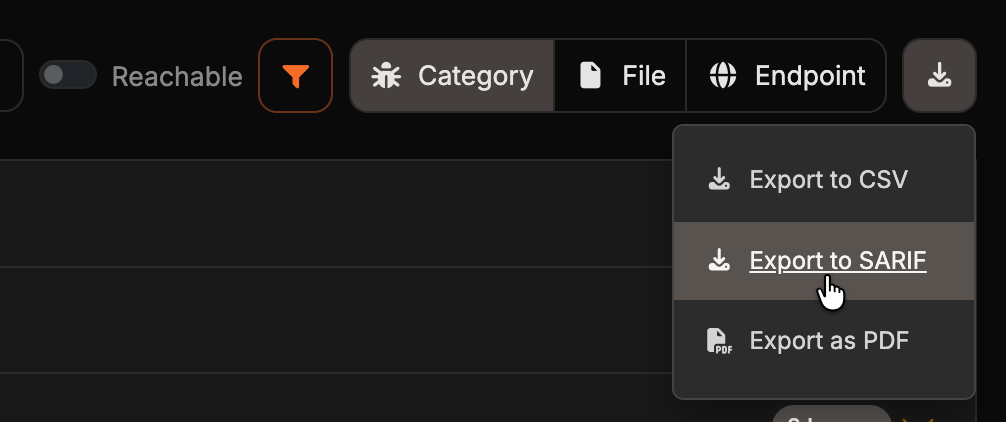
Open the export menu from the download icon at the end of the filter row above the issues list. The menu appears on the **SAST**, **Logic & Auth**, **Secret**, and **Code Quality** tabs.
Choose **Export to SARIF** to download your security findings in SARIF format. The export honors the filters currently applied to the issues list.
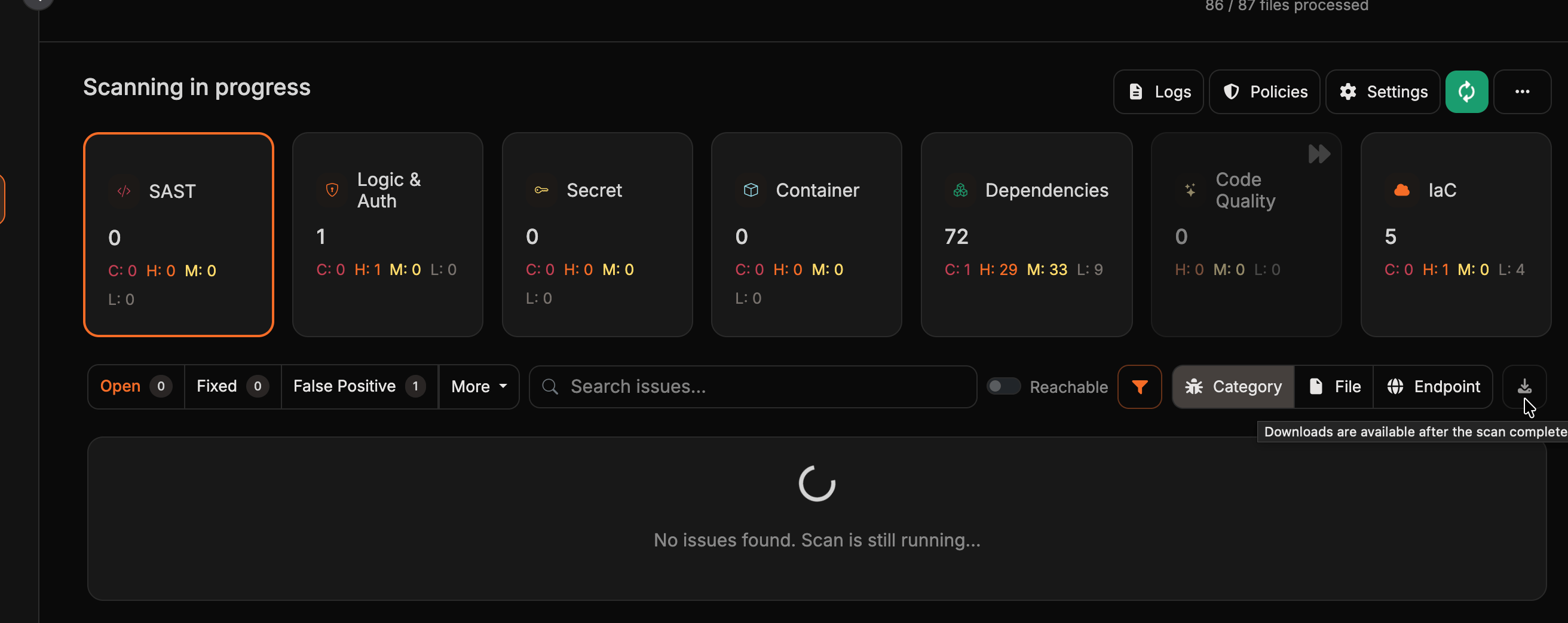
 The export menu is only enabled after a scan completes. While a scan is still running, the download button is disabled with the tooltip *Downloads are available after the scan completes*.
 #### SARIF Report Structure
The exported SARIF report follows the SARIF 2.1.0 specification and includes:
* **Tool Information**: Details about Corgea as the scanning tool
* **Rules**: Definitions of security vulnerabilities, including CWE classifications, a numeric `security-severity` score, and help text
* **Results**: Individual security findings with locations, descriptions, and metadata
* **Code Flows**: Source-to-sink traces, including propagation steps, when flow context is available for a finding
* **Taxonomies**: Project tags and applicable code blocking rules for CI/CD policy evaluation
Code flows help compatible tools display the path that untrusted input takes through the application. Each step is labeled `source`, `propagation`, or `sink`. Findings without available flow context are still included with their primary location and description.
Each result is mapped to the scanned project's tags through the `corgea_project_tags` taxonomy. Results that violate an active code blocking rule are also mapped to that rule through the `corgea_pr_policies` taxonomy, allowing CI/CD platforms that support SARIF taxonomies to identify policy violations and gate builds. Blocking-rule taxonomies are included only when the person exporting the report has permission to view blocking rules.
Each security rule in the SARIF report includes:
```json theme={null}
{
"id": "CWE-89",
"name": "SQL Injection",
"shortDescription": {
"text": "SQL Injection"
},
"fullDescription": {
"text": "CWE-89: Improper Neutralization of Special Elements used in an SQL Command ('SQL Injection')"
},
"helpUri": "https://cwe.mitre.org/data/definitions/89.html",
"help": {
"text": "CWE-89: Improper Neutralization of Special Elements used in an SQL Command ('SQL Injection')\n\nUser-controlled input is concatenated into a SQL query without parameterization.",
"markdown": "## SQL Injection\n\nUser-controlled input is concatenated into a SQL query without parameterization."
},
"defaultConfiguration": {
"level": "warning"
},
"properties": {
"security-severity": "5.0",
"tags": ["security", "corgea", "sast", "CWE-89", "python"]
}
}
```
The `level` and `security-severity` values are derived from the finding's urgency: critical and high map to `error`, medium to `warning`, and low and informational to `note`.
#### SCA Findings in SARIF
When you have the **View SCA Issue** permission, the export carries a second SARIF run named `Corgea SCA` alongside the code findings. There is nothing extra to request: the SCA run travels in the same file you download from the **SAST**, **Logic & Auth**, **Secret**, or **Code Quality** tab.
The run contains the scan's active dependency and container findings. Fixed findings, false positives, and accepted risks are excluded. Each result records the package, version, ecosystem, CVSS score, fixed version, dependency type, reachability, and licenses as SARIF properties, and is located at the manifest or lockfile that declares the dependency rather than at a line of your own source. Dependency findings carry no code flows — source-to-sink traces apply to code findings only.
The SCA run declares its own analysis category, `corgea/sca/`, so platforms such as GitHub code scanning track code and dependency results as independent sets of alerts. The run is included even when a scan has no SCA findings, which lets those platforms resolve alerts that earlier scans reported.
Applicable SCA blocking rules are mapped through the same `corgea_pr_policies` taxonomy as code rules, and are included only when you also have permission to view blocking rules.
#### Sample SARIF Report
You can view a complete sample SARIF report here: [Sample SARIF Report](/samples/corgea_a45fca2d-3684-4586-951e-d8181e78df19.sarif)
The sample contains 27 findings across 14 rules, including:
* SQL Injection (CWE-89)
* OS Command Injection (CWE-78)
* Cross-site Scripting (CWE-79)
* Path Traversal (CWE-22)
* Deserialization of Untrusted Data (CWE-502)
* Server-Side Request Forgery (CWE-918)
* And other common security vulnerabilities
Twelve of the findings carry a `codeFlows` entry, so the sample also shows what source-to-sink traces look like in practice alongside findings that have no flow context.
### CSV Export
CSV (Comma-Separated Values) format provides a simple, spreadsheet-compatible export option for your security findings. This format is ideal for:
* Creating custom reports and dashboards
* Importing into business intelligence tools
* Sharing findings with stakeholders who prefer tabular data
* Performing bulk analysis in spreadsheet applications
When you export from the **Code Quality** view, Corgea applies code quality filters automatically so the CSV contains code quality findings for the selected filters.
When you export SCA dependencies, the CSV includes a **Dependency Type** column so you can distinguish direct, transitive, dev, and optional dependencies.
The CSV export includes key information about each security finding such as:
* Issue ID and Scan ID for tracking
* Project name and classification details
* Vulnerability type (CWE classification) and urgency level
* File location, line number, and programming language
* Issue description and severity ratings
* Assignee email and name, when an issue is assigned
* Scan metadata, formatted as semicolon-separated `key=value` pairs
#### Sample CSV Report
You can view a complete sample CSV report here: [Sample CSV Report](/samples/corgea_a45fca2d-3684-4586-951e-d8181e78df19.csv)
The CSV format includes these columns:
* **Issue ID**: Unique identifier for each security finding
* **Scan ID**: Identifier linking findings to specific scan runs
* **Project Name**: Name of the scanned project
* **Classification ID**: CWE identifier (e.g., CWE-89 for SQL Injection)
* **Issue Classification**: Human-readable vulnerability name
* **Urgency**: Priority level (CR=Critical, HI=High, ME=Medium)
* **File**: Path to the affected source code file
* **Line Number**: Specific line where the issue was detected
* **Language**: Programming language of the affected file
* **Assignee Email**: Email address for the assigned user, when available
* **Assignee Name**: Name of the assigned user, when available
* **Scan Metadata**: Metadata attached to the scan, formatted as semicolon-separated `key=value` pairs
The **Assignee Email**, **Assignee Name**, and **Scan Metadata** columns are also included when you export findings from the **Advanced Vulnerability Search** page.
### PDF Export
PDF export produces a branded, formatted report of a scan's findings that you can share with stakeholders who don't use Corgea. Unlike SARIF and CSV, which are raw data formats built for tooling, the PDF is a presentation-ready document with a cover page, a severity breakdown, and a findings table.
#### How to Export to PDF
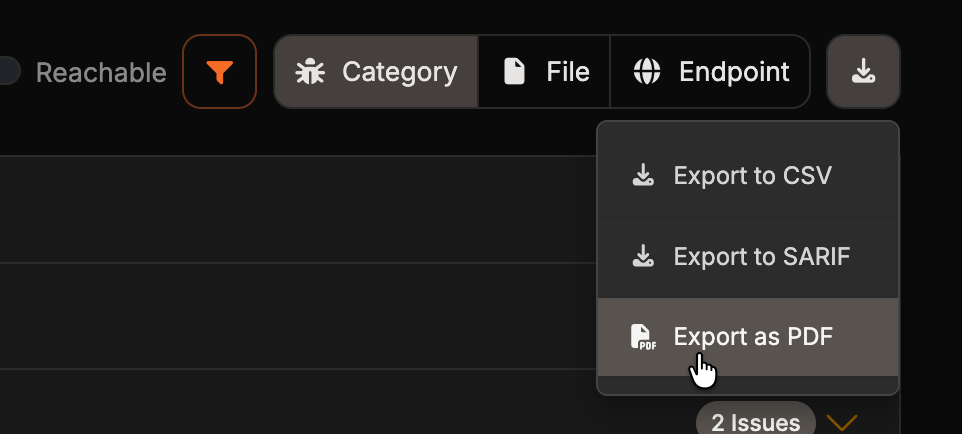
On the scan details page, open the export menu and select **Export as PDF**. The option appears on the **SAST**, **Logic & Auth**, and **Secret** tabs.
#### SARIF Report Structure
The exported SARIF report follows the SARIF 2.1.0 specification and includes:
* **Tool Information**: Details about Corgea as the scanning tool
* **Rules**: Definitions of security vulnerabilities, including CWE classifications, a numeric `security-severity` score, and help text
* **Results**: Individual security findings with locations, descriptions, and metadata
* **Code Flows**: Source-to-sink traces, including propagation steps, when flow context is available for a finding
* **Taxonomies**: Project tags and applicable code blocking rules for CI/CD policy evaluation
Code flows help compatible tools display the path that untrusted input takes through the application. Each step is labeled `source`, `propagation`, or `sink`. Findings without available flow context are still included with their primary location and description.
Each result is mapped to the scanned project's tags through the `corgea_project_tags` taxonomy. Results that violate an active code blocking rule are also mapped to that rule through the `corgea_pr_policies` taxonomy, allowing CI/CD platforms that support SARIF taxonomies to identify policy violations and gate builds. Blocking-rule taxonomies are included only when the person exporting the report has permission to view blocking rules.
Each security rule in the SARIF report includes:
```json theme={null}
{
"id": "CWE-89",
"name": "SQL Injection",
"shortDescription": {
"text": "SQL Injection"
},
"fullDescription": {
"text": "CWE-89: Improper Neutralization of Special Elements used in an SQL Command ('SQL Injection')"
},
"helpUri": "https://cwe.mitre.org/data/definitions/89.html",
"help": {
"text": "CWE-89: Improper Neutralization of Special Elements used in an SQL Command ('SQL Injection')\n\nUser-controlled input is concatenated into a SQL query without parameterization.",
"markdown": "## SQL Injection\n\nUser-controlled input is concatenated into a SQL query without parameterization."
},
"defaultConfiguration": {
"level": "warning"
},
"properties": {
"security-severity": "5.0",
"tags": ["security", "corgea", "sast", "CWE-89", "python"]
}
}
```
The `level` and `security-severity` values are derived from the finding's urgency: critical and high map to `error`, medium to `warning`, and low and informational to `note`.
#### SCA Findings in SARIF
When you have the **View SCA Issue** permission, the export carries a second SARIF run named `Corgea SCA` alongside the code findings. There is nothing extra to request: the SCA run travels in the same file you download from the **SAST**, **Logic & Auth**, **Secret**, or **Code Quality** tab.
The run contains the scan's active dependency and container findings. Fixed findings, false positives, and accepted risks are excluded. Each result records the package, version, ecosystem, CVSS score, fixed version, dependency type, reachability, and licenses as SARIF properties, and is located at the manifest or lockfile that declares the dependency rather than at a line of your own source. Dependency findings carry no code flows — source-to-sink traces apply to code findings only.
The SCA run declares its own analysis category, `corgea/sca/`, so platforms such as GitHub code scanning track code and dependency results as independent sets of alerts. The run is included even when a scan has no SCA findings, which lets those platforms resolve alerts that earlier scans reported.
Applicable SCA blocking rules are mapped through the same `corgea_pr_policies` taxonomy as code rules, and are included only when you also have permission to view blocking rules.
#### Sample SARIF Report
You can view a complete sample SARIF report here: [Sample SARIF Report](/samples/corgea_a45fca2d-3684-4586-951e-d8181e78df19.sarif)
The sample contains 27 findings across 14 rules, including:
* SQL Injection (CWE-89)
* OS Command Injection (CWE-78)
* Cross-site Scripting (CWE-79)
* Path Traversal (CWE-22)
* Deserialization of Untrusted Data (CWE-502)
* Server-Side Request Forgery (CWE-918)
* And other common security vulnerabilities
Twelve of the findings carry a `codeFlows` entry, so the sample also shows what source-to-sink traces look like in practice alongside findings that have no flow context.
### CSV Export
CSV (Comma-Separated Values) format provides a simple, spreadsheet-compatible export option for your security findings. This format is ideal for:
* Creating custom reports and dashboards
* Importing into business intelligence tools
* Sharing findings with stakeholders who prefer tabular data
* Performing bulk analysis in spreadsheet applications
When you export from the **Code Quality** view, Corgea applies code quality filters automatically so the CSV contains code quality findings for the selected filters.
When you export SCA dependencies, the CSV includes a **Dependency Type** column so you can distinguish direct, transitive, dev, and optional dependencies.
The CSV export includes key information about each security finding such as:
* Issue ID and Scan ID for tracking
* Project name and classification details
* Vulnerability type (CWE classification) and urgency level
* File location, line number, and programming language
* Issue description and severity ratings
* Assignee email and name, when an issue is assigned
* Scan metadata, formatted as semicolon-separated `key=value` pairs
#### Sample CSV Report
You can view a complete sample CSV report here: [Sample CSV Report](/samples/corgea_a45fca2d-3684-4586-951e-d8181e78df19.csv)
The CSV format includes these columns:
* **Issue ID**: Unique identifier for each security finding
* **Scan ID**: Identifier linking findings to specific scan runs
* **Project Name**: Name of the scanned project
* **Classification ID**: CWE identifier (e.g., CWE-89 for SQL Injection)
* **Issue Classification**: Human-readable vulnerability name
* **Urgency**: Priority level (CR=Critical, HI=High, ME=Medium)
* **File**: Path to the affected source code file
* **Line Number**: Specific line where the issue was detected
* **Language**: Programming language of the affected file
* **Assignee Email**: Email address for the assigned user, when available
* **Assignee Name**: Name of the assigned user, when available
* **Scan Metadata**: Metadata attached to the scan, formatted as semicolon-separated `key=value` pairs
The **Assignee Email**, **Assignee Name**, and **Scan Metadata** columns are also included when you export findings from the **Advanced Vulnerability Search** page.
### PDF Export
PDF export produces a branded, formatted report of a scan's findings that you can share with stakeholders who don't use Corgea. Unlike SARIF and CSV, which are raw data formats built for tooling, the PDF is a presentation-ready document with a cover page, a severity breakdown, and a findings table.
#### How to Export to PDF
On the scan details page, open the export menu and select **Export as PDF**. The option appears on the **SAST**, **Logic & Auth**, and **Secret** tabs.
 Filter the findings by **Issue types** and **Urgency**. All issue types and urgencies are selected by default. **Findings to export** updates as you change the filters so you can see how many findings the report will contain.
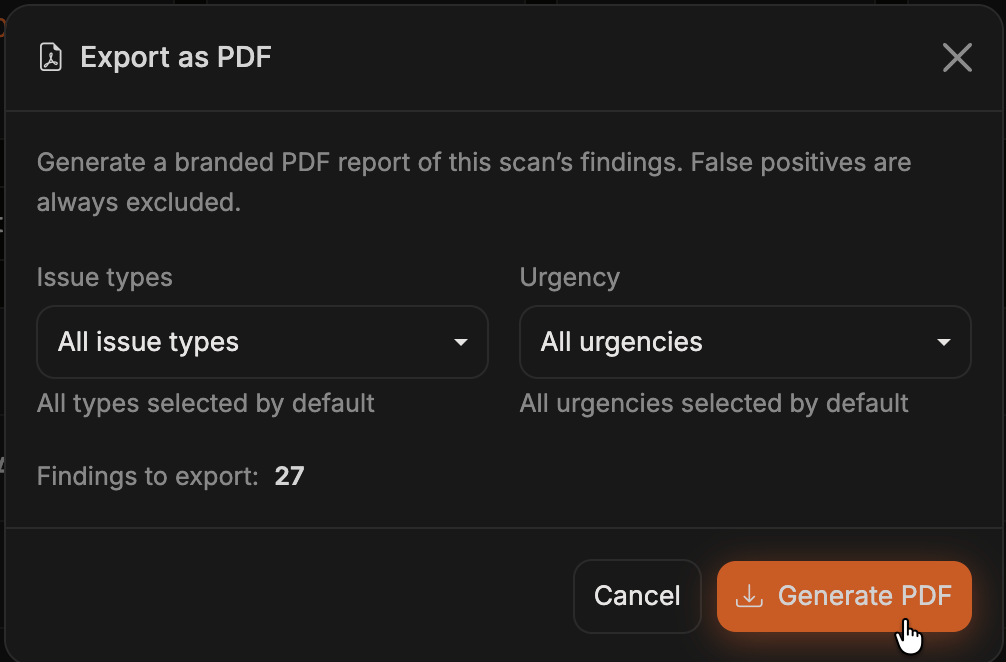 Click **Generate PDF**. Corgea builds the report in the background and shows its progress, then the download starts automatically once the file is ready. The file is named `corgea_scan__findings.pdf`.
The export menu is only enabled after a scan completes. While a scan is still running, the button is disabled with the tooltip *Downloads are available after the scan completes*.
#### What's Included
The report always covers the whole scan, so it contains SAST, Logic & Auth, and Secret findings regardless of which tab you opened the export menu from. The **Issue types** and **Urgency** filters in the modal are the only filters applied, and they're independent of the filters set on the scan details page.
Corgea always excludes the following from the report:
* **False positives**, whether the issue was marked as a false positive or put on hold as one
* **Code quality findings**, which is why PDF export isn't offered on the **Code Quality** tab
Findings are included regardless of their triage status, so open, fixed, and accepted-risk issues all appear in the report.
#### Report Contents
The cover page is marked **Confidential** and summarizes the scan:
* **Organization**: Your Corgea organization name
* **Repository**: The repository URL, or the project name when no URL is available
* **Branch** and **Commit**: The branch and commit SHA that was scanned
* **Scan date**: When the scan completed
* **Scan ID**: The scan identifier
* **Scan status**: Whether the scan completed or is incomplete
* **Findings scope**: The issue-type and urgency filters applied to the report
* **Total findings**: The number of findings in the report
* **Exported**: When the report was generated
The findings section that follows contains a severity summary with **Critical**, **High**, **Medium**, and **Low** counts, then a table of every included finding:
* **Severity**: The urgency of the finding
* **Issue type**: The CWE classification
* **File & line**: The affected file path and line number
* **Description**: A shortened description of the finding
* **Link**: An **Open** link back to the full issue in Corgea
Findings are sorted by severity, from Critical down to Low.
#### Limits
PDF reports are capped at 5,000 findings. If more findings match your filters, Corgea includes the highest-severity findings first and the modal warns you how many findings matched in total. For larger data sets, use the CSV or SARIF export instead, which are capped at 25,000 findings.
If no findings match your filters, you can still generate a report that records the scan and selected scope for audit evidence. Generated reports are available for one hour, after which the download link expires and you'll need to generate the report again.
The scan report API also supports PDF output for completed scans, with optional urgency and classification filters. Other report filters are rejected. Reports with more than 500 findings return `202` and a `poll_url` that includes a `job` parameter; poll the same endpoint with `format=pdf&job=` until the PDF is ready. The CLI doesn't produce PDF output.
Click **Generate PDF**. Corgea builds the report in the background and shows its progress, then the download starts automatically once the file is ready. The file is named `corgea_scan__findings.pdf`.
The export menu is only enabled after a scan completes. While a scan is still running, the button is disabled with the tooltip *Downloads are available after the scan completes*.
#### What's Included
The report always covers the whole scan, so it contains SAST, Logic & Auth, and Secret findings regardless of which tab you opened the export menu from. The **Issue types** and **Urgency** filters in the modal are the only filters applied, and they're independent of the filters set on the scan details page.
Corgea always excludes the following from the report:
* **False positives**, whether the issue was marked as a false positive or put on hold as one
* **Code quality findings**, which is why PDF export isn't offered on the **Code Quality** tab
Findings are included regardless of their triage status, so open, fixed, and accepted-risk issues all appear in the report.
#### Report Contents
The cover page is marked **Confidential** and summarizes the scan:
* **Organization**: Your Corgea organization name
* **Repository**: The repository URL, or the project name when no URL is available
* **Branch** and **Commit**: The branch and commit SHA that was scanned
* **Scan date**: When the scan completed
* **Scan ID**: The scan identifier
* **Scan status**: Whether the scan completed or is incomplete
* **Findings scope**: The issue-type and urgency filters applied to the report
* **Total findings**: The number of findings in the report
* **Exported**: When the report was generated
The findings section that follows contains a severity summary with **Critical**, **High**, **Medium**, and **Low** counts, then a table of every included finding:
* **Severity**: The urgency of the finding
* **Issue type**: The CWE classification
* **File & line**: The affected file path and line number
* **Description**: A shortened description of the finding
* **Link**: An **Open** link back to the full issue in Corgea
Findings are sorted by severity, from Critical down to Low.
#### Limits
PDF reports are capped at 5,000 findings. If more findings match your filters, Corgea includes the highest-severity findings first and the modal warns you how many findings matched in total. For larger data sets, use the CSV or SARIF export instead, which are capped at 25,000 findings.
If no findings match your filters, you can still generate a report that records the scan and selected scope for audit evidence. Generated reports are available for one hour, after which the download link expires and you'll need to generate the report again.
The scan report API also supports PDF output for completed scans, with optional urgency and classification filters. Other report filters are rejected. Reports with more than 500 findings return `202` and a `poll_url` that includes a `job` parameter; poll the same endpoint with `format=pdf&job=` until the PDF is ready. The CLI doesn't produce PDF output.
Dependency Exports
The **Container** and **Dependencies** tabs have their own export controls rather than the SARIF, CSV, and PDF menu described above, because they list packages instead of code findings.
Viewing dependencies, downloading SBOM files, and exporting dependency CSVs require the **View SCA Issue** permission. See [Software Composition Analysis](/sca) for the full dependency workflow.
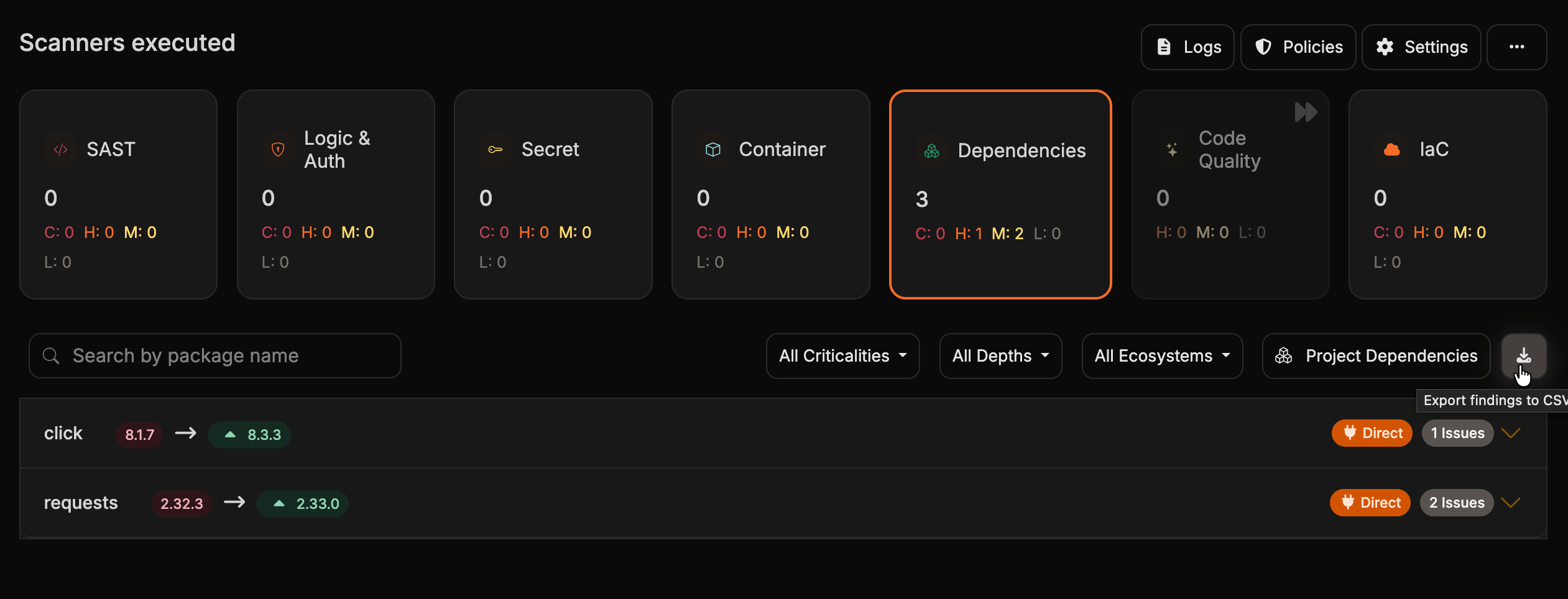
#### Findings CSV
The download icon at the end of the filter row exports the dependency findings that match your current search and filters, including the ecosystem, reachability, dependency type, and criticality selections.
 #### SBOM
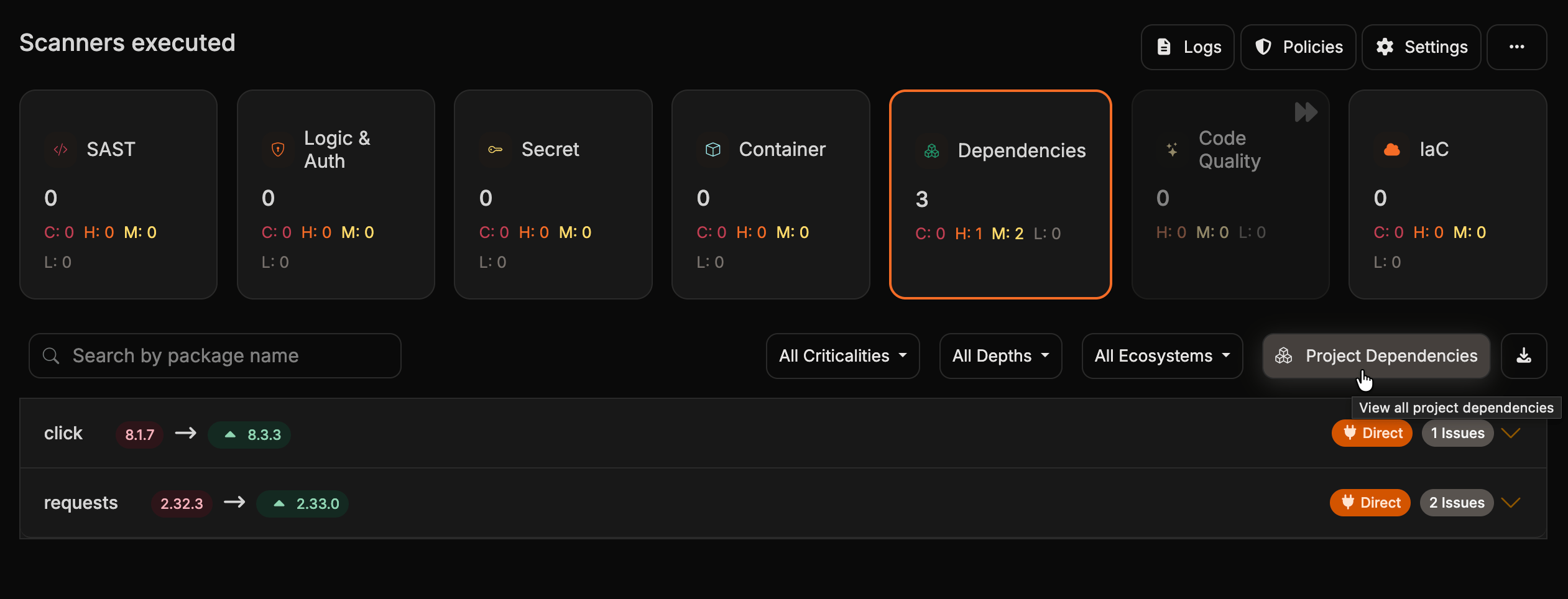
**Project Dependencies** opens a modal listing every dependency Corgea resolved for the scan, whether or not it has a vulnerability.
#### SBOM
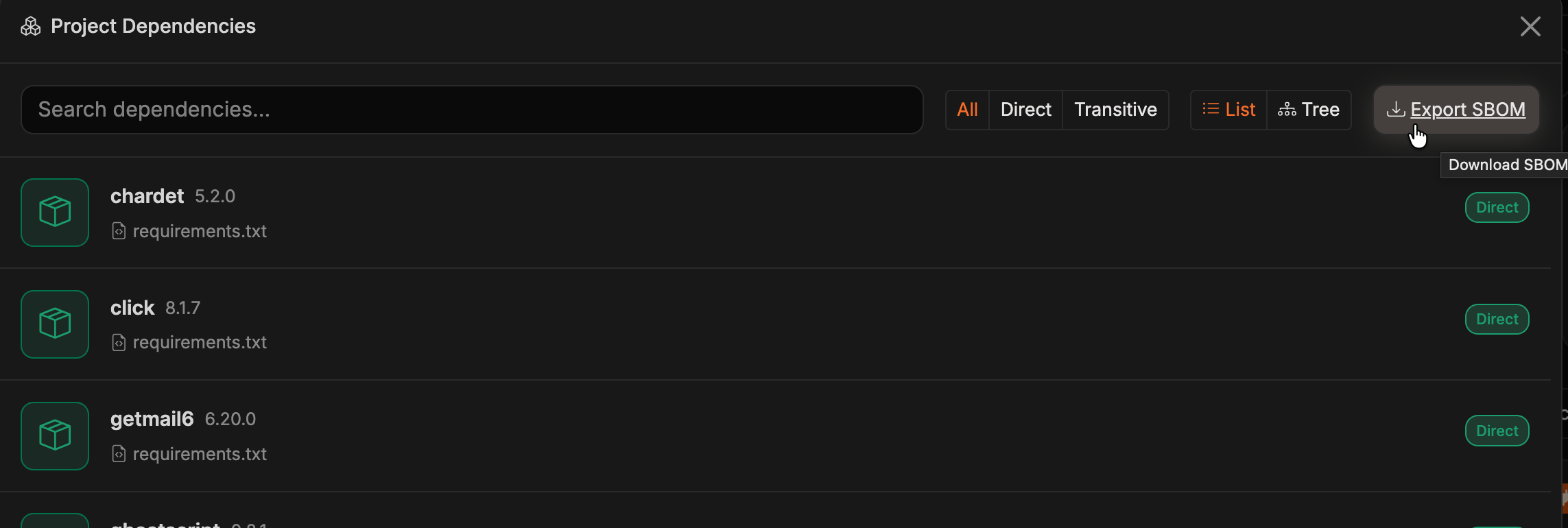
**Project Dependencies** opens a modal listing every dependency Corgea resolved for the scan, whether or not it has a vulnerability.
 Click **Export SBOM** in that modal to download a software bill of materials for the scan.
 #### Dependency Coverage
When dependency coverage is enabled for your organization, the **Dependencies** tab also shows a **Dependency Coverage** panel with an **Export coverage** button. This CSV reports which manifests Corgea parsed and which dependencies it could not resolve, which is useful for confirming that a scan covered everything you expected.
The coverage panel and its export are specific to the **Dependencies** tab. The **Container** tab offers only the findings CSV.
## Integration Benefits
### SARIF Integration Advantages
* **Tool Compatibility**: SARIF files can be consumed by various security tools, IDEs, and CI/CD systems
* **GitHub Integration**: GitHub natively supports SARIF for security alerts and code scanning
* **Standardized Format**: Industry-standard format ensures compatibility across different platforms
* **Rich Metadata**: Includes detailed location information, severity levels, and remediation guidance
When exporting from the **Code Quality** view, SARIF export follows the same scoped filtering and includes only code quality findings that match your current selection.
### Use Cases
* **CI/CD Pipeline Integration**: Automatically process SARIF reports in your build pipeline
* **Security Dashboard Integration**: Import findings into centralized security management platforms
* **Compliance Reporting**: Generate standardized reports for security audits and compliance requirements
* **Developer Workflow**: Integrate with IDEs that support SARIF for inline security feedback
## Best Practices
* **Regular Exports**: Set up regular exports to track security improvements over time
* **Version Control**: Store exported reports alongside your code for historical tracking
* **Automated Processing**: Use SARIF exports in automated workflows for continuous security monitoring
* **Tool Integration**: Leverage SARIF compatibility to integrate with your existing security toolchain
## Technical Specifications
### SARIF Version
Corgea exports use SARIF version 2.1.0, ensuring compatibility with the latest tools and platforms.
### File Size Considerations
Large projects may generate substantial SARIF files. Consider filtering results or exporting specific vulnerability types for very large codebases.
### Schema Validation
All exported SARIF files conform to the official SARIF 2.1.0 JSON schema, ensuring reliable parsing by compatible tools.
#### Dependency Coverage
When dependency coverage is enabled for your organization, the **Dependencies** tab also shows a **Dependency Coverage** panel with an **Export coverage** button. This CSV reports which manifests Corgea parsed and which dependencies it could not resolve, which is useful for confirming that a scan covered everything you expected.
The coverage panel and its export are specific to the **Dependencies** tab. The **Container** tab offers only the findings CSV.
## Integration Benefits
### SARIF Integration Advantages
* **Tool Compatibility**: SARIF files can be consumed by various security tools, IDEs, and CI/CD systems
* **GitHub Integration**: GitHub natively supports SARIF for security alerts and code scanning
* **Standardized Format**: Industry-standard format ensures compatibility across different platforms
* **Rich Metadata**: Includes detailed location information, severity levels, and remediation guidance
When exporting from the **Code Quality** view, SARIF export follows the same scoped filtering and includes only code quality findings that match your current selection.
### Use Cases
* **CI/CD Pipeline Integration**: Automatically process SARIF reports in your build pipeline
* **Security Dashboard Integration**: Import findings into centralized security management platforms
* **Compliance Reporting**: Generate standardized reports for security audits and compliance requirements
* **Developer Workflow**: Integrate with IDEs that support SARIF for inline security feedback
## Best Practices
* **Regular Exports**: Set up regular exports to track security improvements over time
* **Version Control**: Store exported reports alongside your code for historical tracking
* **Automated Processing**: Use SARIF exports in automated workflows for continuous security monitoring
* **Tool Integration**: Leverage SARIF compatibility to integrate with your existing security toolchain
## Technical Specifications
### SARIF Version
Corgea exports use SARIF version 2.1.0, ensuring compatibility with the latest tools and platforms.
### File Size Considerations
Large projects may generate substantial SARIF files. Consider filtering results or exporting specific vulnerability types for very large codebases.
### Schema Validation
All exported SARIF files conform to the official SARIF 2.1.0 JSON schema, ensuring reliable parsing by compatible tools.