> ## Documentation Index
> Fetch the complete documentation index at: https://docs.corgea.app/llms.txt
> Use this file to discover all available pages before exploring further.
# Content Access Management
> Control project access for different teams and members.
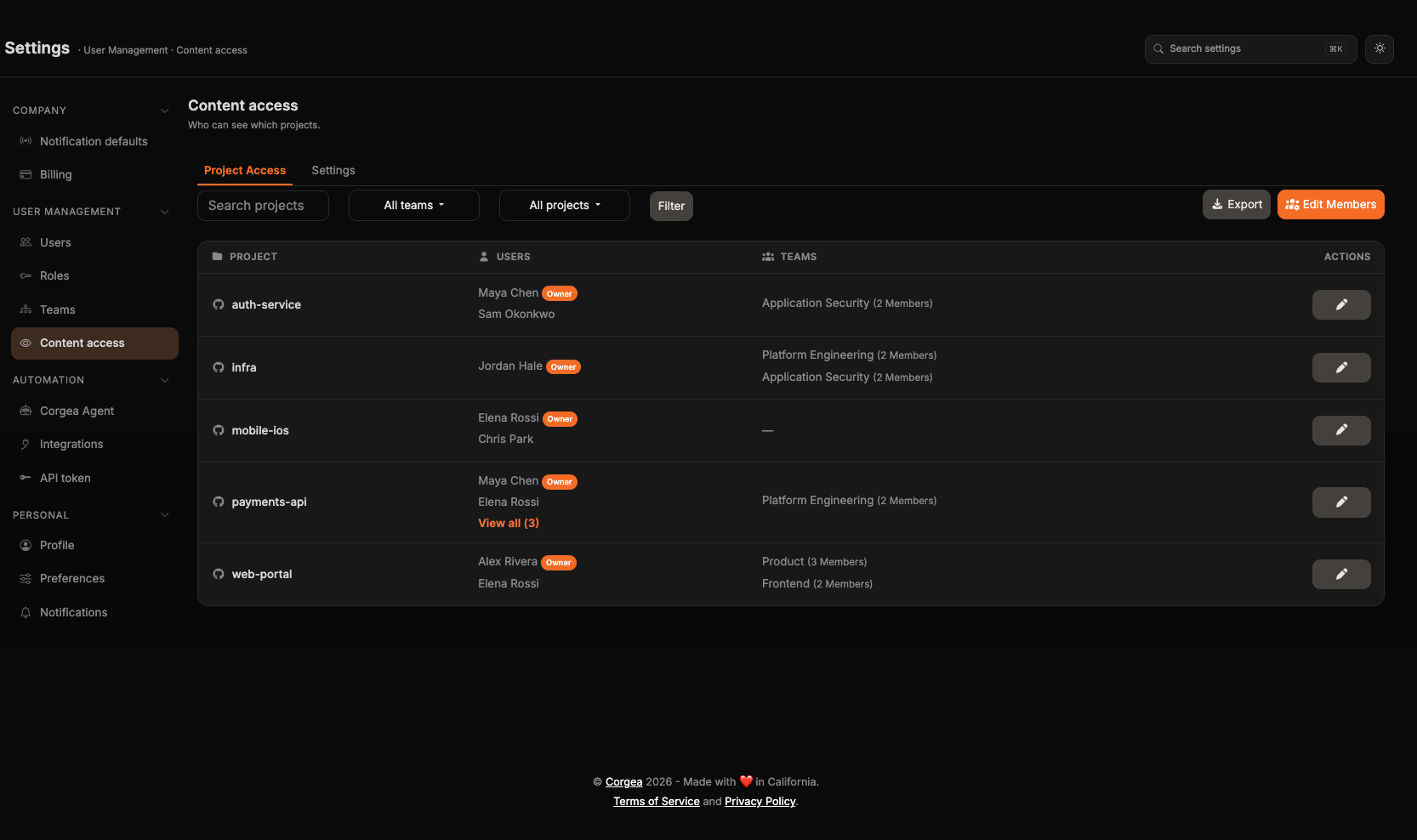
Content Access Management is Corgea's project-level access control system. It allows you to control who in your organization can view and interact with specific projects and their security data.
Content Access Management relies on Teams and is available on plans that include Team Management.
By default, all users in your company can access all company projects. With Content Access Management enabled, users only see projects granted through direct assignments, team assignments, or dynamic team selectors.
This feature is essential for organizations that need to:
* Separate access between different teams or departments
* Restrict sensitive projects to specific individuals
* Comply with security policies that require access segregation
* Manage contractor or external consultant access
 ## How Does It Work?
Content Access Management operates at two levels:
### Company-Level Setting
Your company has a **Project Access Control** toggle that determines the overall access model:
* **Disabled (Default)**: Open access model - all users in your company can access all company projects
* **Enabled**: Restricted access model - users can only access projects granted directly or through a team
### Project-Level Access
When Project Access Control is enabled, users gain access to a project through direct user access or member-level access inherited from a team:
Users who belong to a team assigned explicitly to the project automatically receive member-level access. This provides the same permissions as direct members but is managed at the team level rather than per-project.
Learn more about teams in our [Teams Guide](teams).
A team can grant member-level access to sets of projects using:
* **Project tags**: Any project carrying one of the team's selected tags
* **Repository URL fragments**: Any project whose repository URL contains one of the team's configured fragments
These selectors are evaluated dynamically. Newly created or re-tagged projects begin matching without a separate assignment step.
Manage these selectors programmatically with the [Teams API](/api-reference/teams/list-teams).
Members can access project data but have limited administrative capabilities:
* View all security issues and vulnerabilities
* Access scan results and historical data
* Review and interact with fixes
* Participate in issue discussions
* Cannot modify project settings or delete the project
Owners have full control over a project, including:
* Viewing all project security data (issues, scans, fixes)
* Configuring project settings
* Managing project integrations
* Adding/removing other users and teams
* Deleting the project
### Special Cases
**API Access**: Access control applies to both the web interface and API calls. Users can only access project data through the API if they have proper permissions.
## How to Implement Content Access Management
**Required Permission**: Company administrator access
1. Go to **Settings → User Management → [Content access](https://www.corgea.app/settings/company/content-access/)**
2. Open the **Settings** tab and find **Project Access Control**
3. Turn on the **Project Access Control** toggle. It applies immediately, with no **Save** to click
Once enabled, users immediately lose access to projects not covered by a direct assignment, team assignment, or team selector. Plan your rollout accordingly.
**Required Permission**: `Change Project` permission or project owner role
After enabling Project Access Control, you need to grant users access to projects:
1. Go to **Settings → User Management → [Content access](https://www.corgea.app/settings/company/content-access/)**
2. Search by project or member, or filter by team and project to narrow the list
3. For each project, you can:
* View current members and teams
* Add new users as owners or members
* Add teams to the project
* Remove existing access
4. Use **Edit Members** to apply access changes across multiple projects at once
1) Click on the project you want to manage
2) Select **Add Member** or **Add Owner**
3) Choose the user from your company's user list
4) Select their role:
* **Owner**: Full project control
* **Member**: View and interact with security data
5) Confirm the addition
1. Click on the project you want to manage
2. Select **Add Team**
3. Choose the team from your company's teams list
4. Confirm the addition
5. All current and future members of that team will have member-level access
Learn how to create and manage teams in our [Teams Guide](teams).
1. Click **Edit Members**
2. Filter or search for the projects you want to update
3. Select the projects in scope
4. Choose an action:
* Add users as members or owners
* Remove users from members and owners
* Add or remove teams
* Replace one owner with another owner
* Remove inactive users from selected projects
5. Confirm the update
After assigning access:
1. Review the Content Access page to ensure assignments are correct
2. Test with a user account to verify they can access appropriate projects
3. Check that users without access cannot see restricted projects
As your organization evolves:
* **New Projects**: Assign owners and members, or make sure the project matches the intended team selectors
* **New Users**: Add them to relevant projects or teams
* **Role Changes**: Update access when people change roles, including replacing project owners in bulk
* **Departures**: Deactivated users are hidden from active access lists, and you can remove inactive users from selected projects in bulk
## Best Practices
Before turning on Project Access Control:
* Document which users should have access to which projects
* Consider creating teams first to simplify assignment
* Communicate the change to your organization
* Consider starting with a pilot group of projects
For projects with multiple users, use teams instead of individual assignments:
* ✅ Add "Backend Team" to 10 projects (10 operations)
* ❌ Add 15 individual users to 10 projects (150 operations)
Teams also make ongoing management much easier.
Every project should have at least one owner who can:
* Manage project settings
* Add/remove other users
* Handle project-specific configuration
Without an owner, projects become difficult to manage.
Use ownership strategically:
* **Owners**: Project leads, managers, senior engineers responsible for the project
* **Members**: Contributors, reviewers, stakeholders who need visibility
Don't make everyone an owner—it reduces accountability and increases security risk.
Schedule periodic reviews of project access:
* Quarterly or bi-annually, review who has access to each project
* Remove access for users who no longer need it
* Update access for users whose roles have changed
* Use bulk actions to clean up stale assignments across filtered projects
* Export access data for compliance purposes
The Content Access page includes search and filters:
* Quickly find specific projects
* Search for active or inactive users to see which projects they are assigned to
* Filter by team or project before reviewing access or applying bulk changes
**Required Permission**: Content access view permission
Export your access configuration for:
* Compliance audits
* Security reviews
* Documentation purposes
* Backup before making bulk changes
Use the **Export** button on the Content Access page to download a CSV of active project access assignments.
Match your access control to how your organization actually works:
* If teams are siloed (separate frontend/backend/mobile), use strict access control
* If teams are fluid and collaborative, you might prefer open access
* Use a hybrid approach: open access for most projects, restricted access for sensitive ones (though this requires keeping some projects in a separate company space)
When modifying access:
* Inform affected users before removing their access
* Explain why access is being granted or revoked
* Document your access policies so users understand the rules
When in doubt:
* Grant member access instead of owner access
* Users can always request elevated permissions if needed
* It's easier to grant additional access than to revoke it
## Frequently Asked Questions
They immediately lose access to projects where they are not owners, direct members, explicit team members, or members of a team whose selectors match. Plan accordingly before enabling the feature.
No. Project Access Control is a company-wide setting. It's either enabled for all projects or disabled for all projects within your company.
Owners can configure project settings, manage access, and delete projects when they also have the `Can delete project` permission. Members can view and interact with security data but cannot modify project configuration or manage access.
They have access through both paths. Removing them from the team doesn't affect their direct member access, and vice versa.
No. When Project Access Control is enabled, users can only see projects they have access to. Projects they cannot access are completely hidden.
Yes. API calls and integrations respect the same access control rules as the web interface.
Yes, you can toggle Project Access Control on and off. However, each time you disable and re-enable it, you'll need to verify access assignments are still appropriate.
Project owners can manage access for their specific projects. Company administrators can manage access for all projects. Regular members cannot manage access.
Deactivated users are no longer shown as active project owners or members in the Content Access table, members modal, or CSV export. Company administrators can use **Edit Members** to remove inactive users from selected projects in bulk.
No. Access control only affects who can *view* projects and their data. It doesn't change how Corgea scans repositories or generates fixes.
***
**Related Documentation:**
* [Teams Guide](teams) - Learn how to create and manage teams for efficient access control
* [User Management](user_management) - Managing users in your organization
**Need Help?** Contact Corgea support for assistance with setting up or managing Content Access Management for your organization.
## How Does It Work?
Content Access Management operates at two levels:
### Company-Level Setting
Your company has a **Project Access Control** toggle that determines the overall access model:
* **Disabled (Default)**: Open access model - all users in your company can access all company projects
* **Enabled**: Restricted access model - users can only access projects granted directly or through a team
### Project-Level Access
When Project Access Control is enabled, users gain access to a project through direct user access or member-level access inherited from a team:
Users who belong to a team assigned explicitly to the project automatically receive member-level access. This provides the same permissions as direct members but is managed at the team level rather than per-project.
Learn more about teams in our [Teams Guide](teams).
A team can grant member-level access to sets of projects using:
* **Project tags**: Any project carrying one of the team's selected tags
* **Repository URL fragments**: Any project whose repository URL contains one of the team's configured fragments
These selectors are evaluated dynamically. Newly created or re-tagged projects begin matching without a separate assignment step.
Manage these selectors programmatically with the [Teams API](/api-reference/teams/list-teams).
Members can access project data but have limited administrative capabilities:
* View all security issues and vulnerabilities
* Access scan results and historical data
* Review and interact with fixes
* Participate in issue discussions
* Cannot modify project settings or delete the project
Owners have full control over a project, including:
* Viewing all project security data (issues, scans, fixes)
* Configuring project settings
* Managing project integrations
* Adding/removing other users and teams
* Deleting the project
### Special Cases
**API Access**: Access control applies to both the web interface and API calls. Users can only access project data through the API if they have proper permissions.
## How to Implement Content Access Management
**Required Permission**: Company administrator access
1. Go to **Settings → User Management → [Content access](https://www.corgea.app/settings/company/content-access/)**
2. Open the **Settings** tab and find **Project Access Control**
3. Turn on the **Project Access Control** toggle. It applies immediately, with no **Save** to click
Once enabled, users immediately lose access to projects not covered by a direct assignment, team assignment, or team selector. Plan your rollout accordingly.
**Required Permission**: `Change Project` permission or project owner role
After enabling Project Access Control, you need to grant users access to projects:
1. Go to **Settings → User Management → [Content access](https://www.corgea.app/settings/company/content-access/)**
2. Search by project or member, or filter by team and project to narrow the list
3. For each project, you can:
* View current members and teams
* Add new users as owners or members
* Add teams to the project
* Remove existing access
4. Use **Edit Members** to apply access changes across multiple projects at once
1) Click on the project you want to manage
2) Select **Add Member** or **Add Owner**
3) Choose the user from your company's user list
4) Select their role:
* **Owner**: Full project control
* **Member**: View and interact with security data
5) Confirm the addition
1. Click on the project you want to manage
2. Select **Add Team**
3. Choose the team from your company's teams list
4. Confirm the addition
5. All current and future members of that team will have member-level access
Learn how to create and manage teams in our [Teams Guide](teams).
1. Click **Edit Members**
2. Filter or search for the projects you want to update
3. Select the projects in scope
4. Choose an action:
* Add users as members or owners
* Remove users from members and owners
* Add or remove teams
* Replace one owner with another owner
* Remove inactive users from selected projects
5. Confirm the update
After assigning access:
1. Review the Content Access page to ensure assignments are correct
2. Test with a user account to verify they can access appropriate projects
3. Check that users without access cannot see restricted projects
As your organization evolves:
* **New Projects**: Assign owners and members, or make sure the project matches the intended team selectors
* **New Users**: Add them to relevant projects or teams
* **Role Changes**: Update access when people change roles, including replacing project owners in bulk
* **Departures**: Deactivated users are hidden from active access lists, and you can remove inactive users from selected projects in bulk
## Best Practices
Before turning on Project Access Control:
* Document which users should have access to which projects
* Consider creating teams first to simplify assignment
* Communicate the change to your organization
* Consider starting with a pilot group of projects
For projects with multiple users, use teams instead of individual assignments:
* ✅ Add "Backend Team" to 10 projects (10 operations)
* ❌ Add 15 individual users to 10 projects (150 operations)
Teams also make ongoing management much easier.
Every project should have at least one owner who can:
* Manage project settings
* Add/remove other users
* Handle project-specific configuration
Without an owner, projects become difficult to manage.
Use ownership strategically:
* **Owners**: Project leads, managers, senior engineers responsible for the project
* **Members**: Contributors, reviewers, stakeholders who need visibility
Don't make everyone an owner—it reduces accountability and increases security risk.
Schedule periodic reviews of project access:
* Quarterly or bi-annually, review who has access to each project
* Remove access for users who no longer need it
* Update access for users whose roles have changed
* Use bulk actions to clean up stale assignments across filtered projects
* Export access data for compliance purposes
The Content Access page includes search and filters:
* Quickly find specific projects
* Search for active or inactive users to see which projects they are assigned to
* Filter by team or project before reviewing access or applying bulk changes
**Required Permission**: Content access view permission
Export your access configuration for:
* Compliance audits
* Security reviews
* Documentation purposes
* Backup before making bulk changes
Use the **Export** button on the Content Access page to download a CSV of active project access assignments.
Match your access control to how your organization actually works:
* If teams are siloed (separate frontend/backend/mobile), use strict access control
* If teams are fluid and collaborative, you might prefer open access
* Use a hybrid approach: open access for most projects, restricted access for sensitive ones (though this requires keeping some projects in a separate company space)
When modifying access:
* Inform affected users before removing their access
* Explain why access is being granted or revoked
* Document your access policies so users understand the rules
When in doubt:
* Grant member access instead of owner access
* Users can always request elevated permissions if needed
* It's easier to grant additional access than to revoke it
## Frequently Asked Questions
They immediately lose access to projects where they are not owners, direct members, explicit team members, or members of a team whose selectors match. Plan accordingly before enabling the feature.
No. Project Access Control is a company-wide setting. It's either enabled for all projects or disabled for all projects within your company.
Owners can configure project settings, manage access, and delete projects when they also have the `Can delete project` permission. Members can view and interact with security data but cannot modify project configuration or manage access.
They have access through both paths. Removing them from the team doesn't affect their direct member access, and vice versa.
No. When Project Access Control is enabled, users can only see projects they have access to. Projects they cannot access are completely hidden.
Yes. API calls and integrations respect the same access control rules as the web interface.
Yes, you can toggle Project Access Control on and off. However, each time you disable and re-enable it, you'll need to verify access assignments are still appropriate.
Project owners can manage access for their specific projects. Company administrators can manage access for all projects. Regular members cannot manage access.
Deactivated users are no longer shown as active project owners or members in the Content Access table, members modal, or CSV export. Company administrators can use **Edit Members** to remove inactive users from selected projects in bulk.
No. Access control only affects who can *view* projects and their data. It doesn't change how Corgea scans repositories or generates fixes.
***
**Related Documentation:**
* [Teams Guide](teams) - Learn how to create and manage teams for efficient access control
* [User Management](user_management) - Managing users in your organization
**Need Help?** Contact Corgea support for assistance with setting up or managing Content Access Management for your organization.